
Livble gives you the option to pay your rent in weekly installments. If you’re eligible (please see important notes below), all you have to do is select installment payments when choosing a payment method. Once you’ve made a selection, a small window will appear where you can finish signing up directly through Livble. After receiving a confirmation on the Livble window, your Innago account will update to show that a payment has been submitted sucessfully.
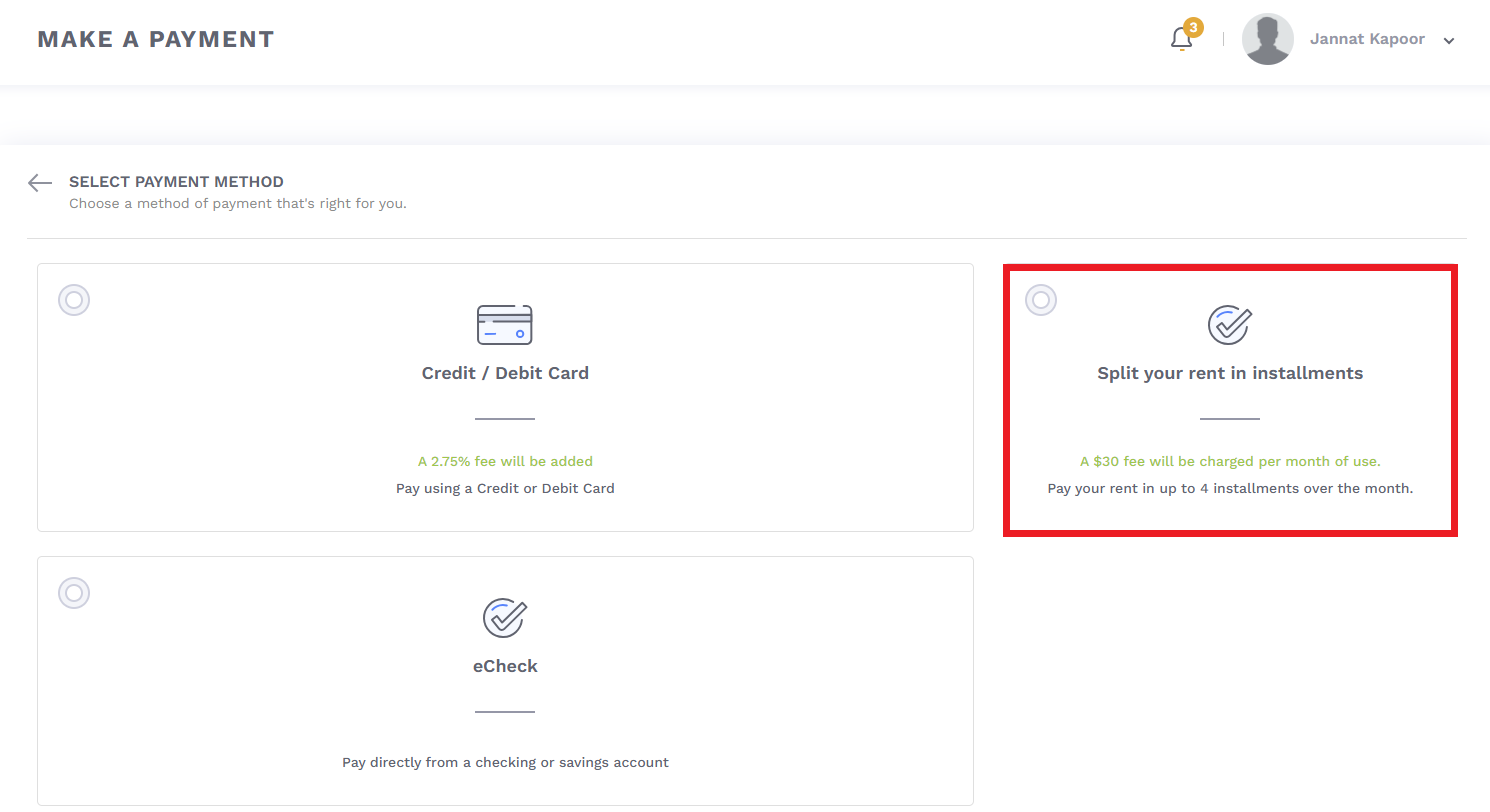
In order to pay using Livble, you’ll follow the same path you use to make regular payments. For instructions on how you can set up your standard payment methods and submit payments, please see the following video here. On the Select Payment Method screen, you’ll select the “Split your rent in installments” option to get started.
Important Notes – Livble installment payments are only available to eligible tenants. If you’re not eligible, you will not see installments as a payment option in your account. The following conditions will make you ineligible:
-
-
- You have been added to Innago less than 90 days ago
- You haven’t paid your initial Security Deposit in full yet
- Your lease in Innago has expired
- You reside in a state where Livble is currently not available (check the currently eligible states here).
-
Additional Notes:
-
-
- Livble charges tenants $30 per month to use this feature.
- Livble cannot be used for partial payments. All tenants will have to enroll in installments for the full outstanding balance on their account.
- If you submit a Livble payment after 2:00pm EST, the payment will be submitted the next business day.
- Your landlord will be paid in full, immediately. It will then be your responsibility to continue making payments directly to Livble to fulfill their installment agreement.
-
Any issues or concerns regarding Livble installment payments or plans must be directed to Livble at their email address, support@livble.com.