
As a tenant, you can purchase renter’s insurance directly through Innago’s home page, or when logged into an existing Innago account.
Purchasing Renter’s Insurance
From the Innago home page:
-
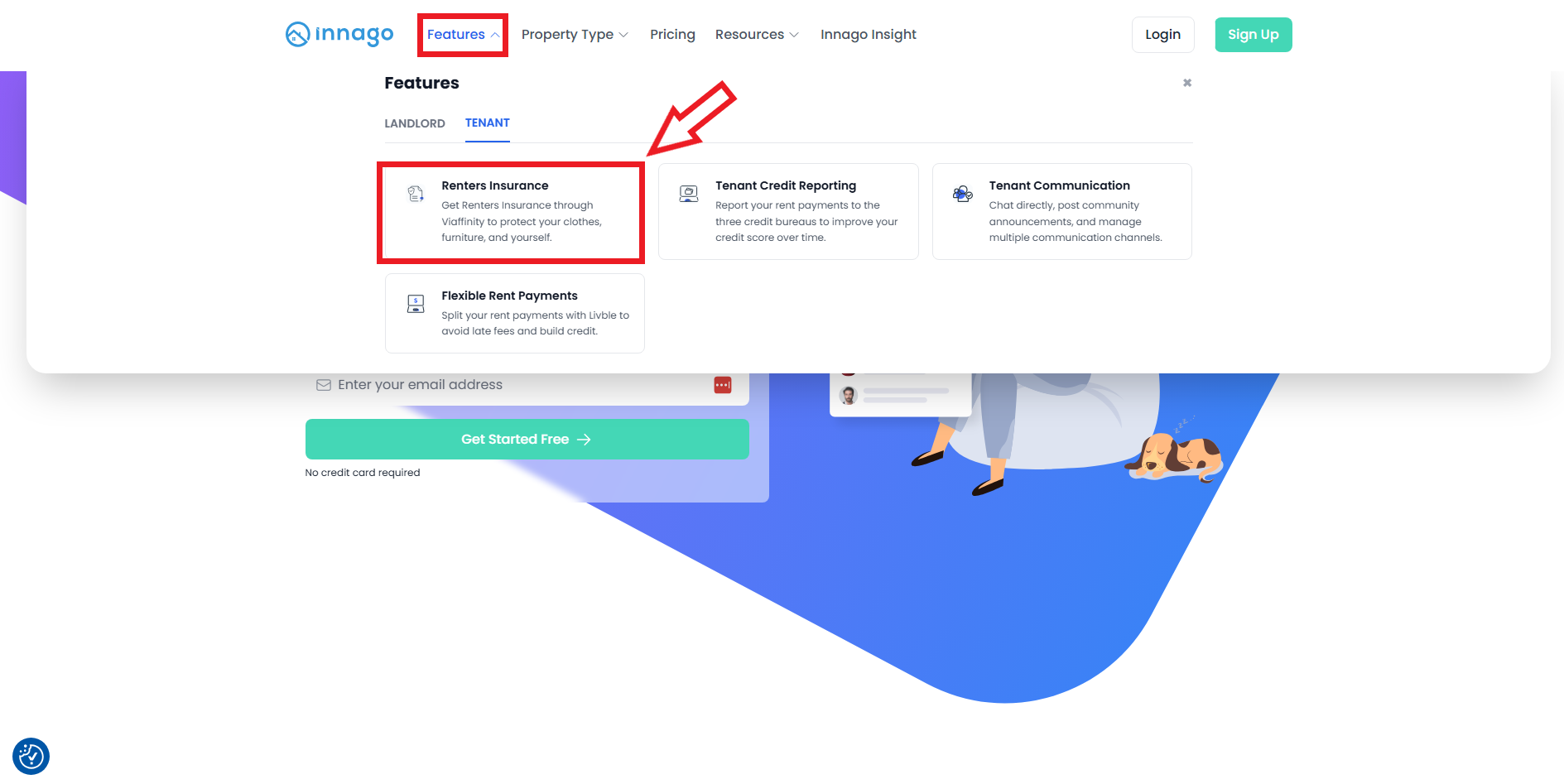
Tenants can go to Innago.com and click “Features” tab of the main menu at the top of the screen. Select the “Tenant” tab then click “Renter’s Insurance”.
-
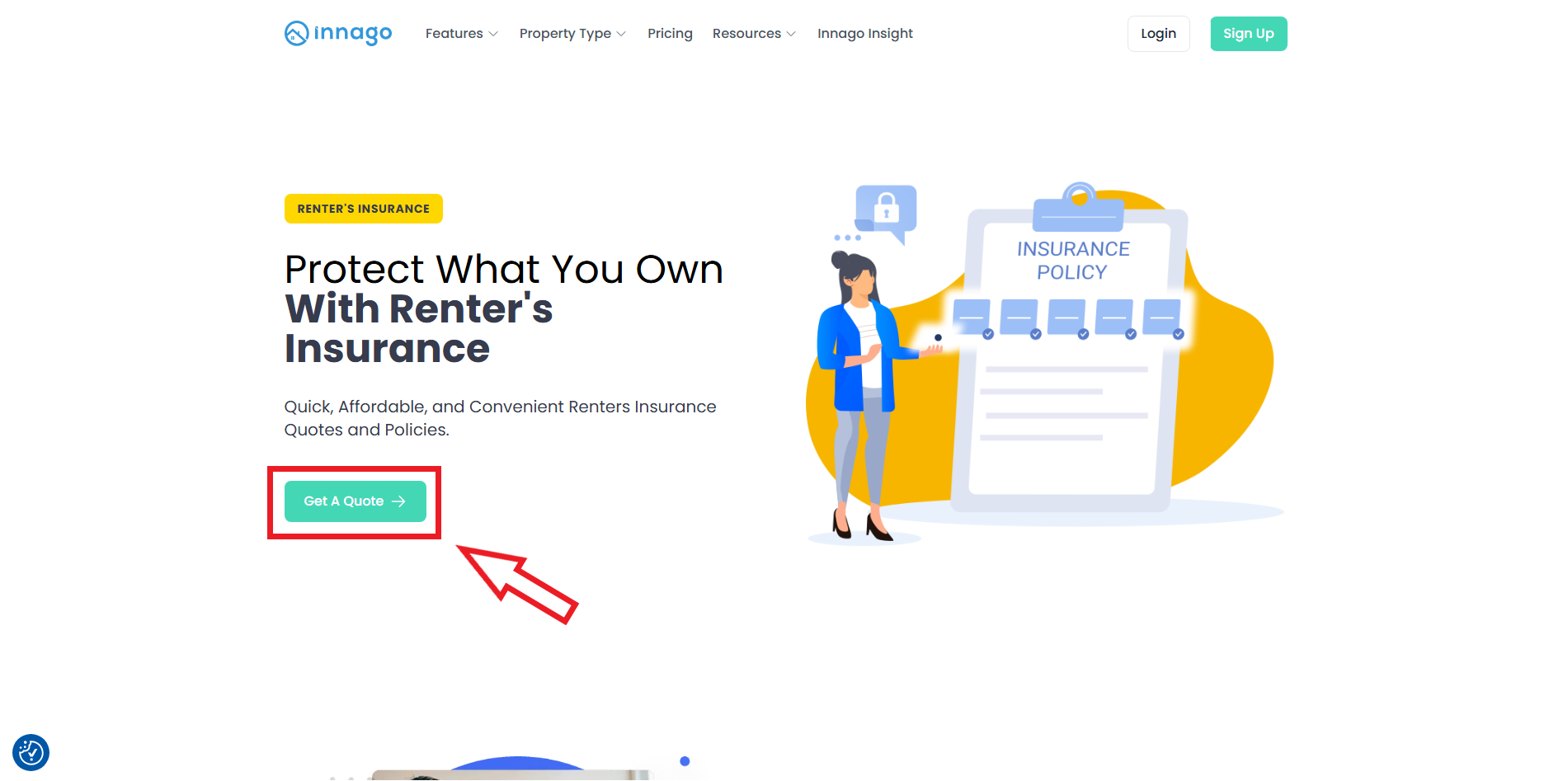
From here, you’ll be redirected to Landing Page where you can click “Get a Quote” to buy renter’s insurance.
-
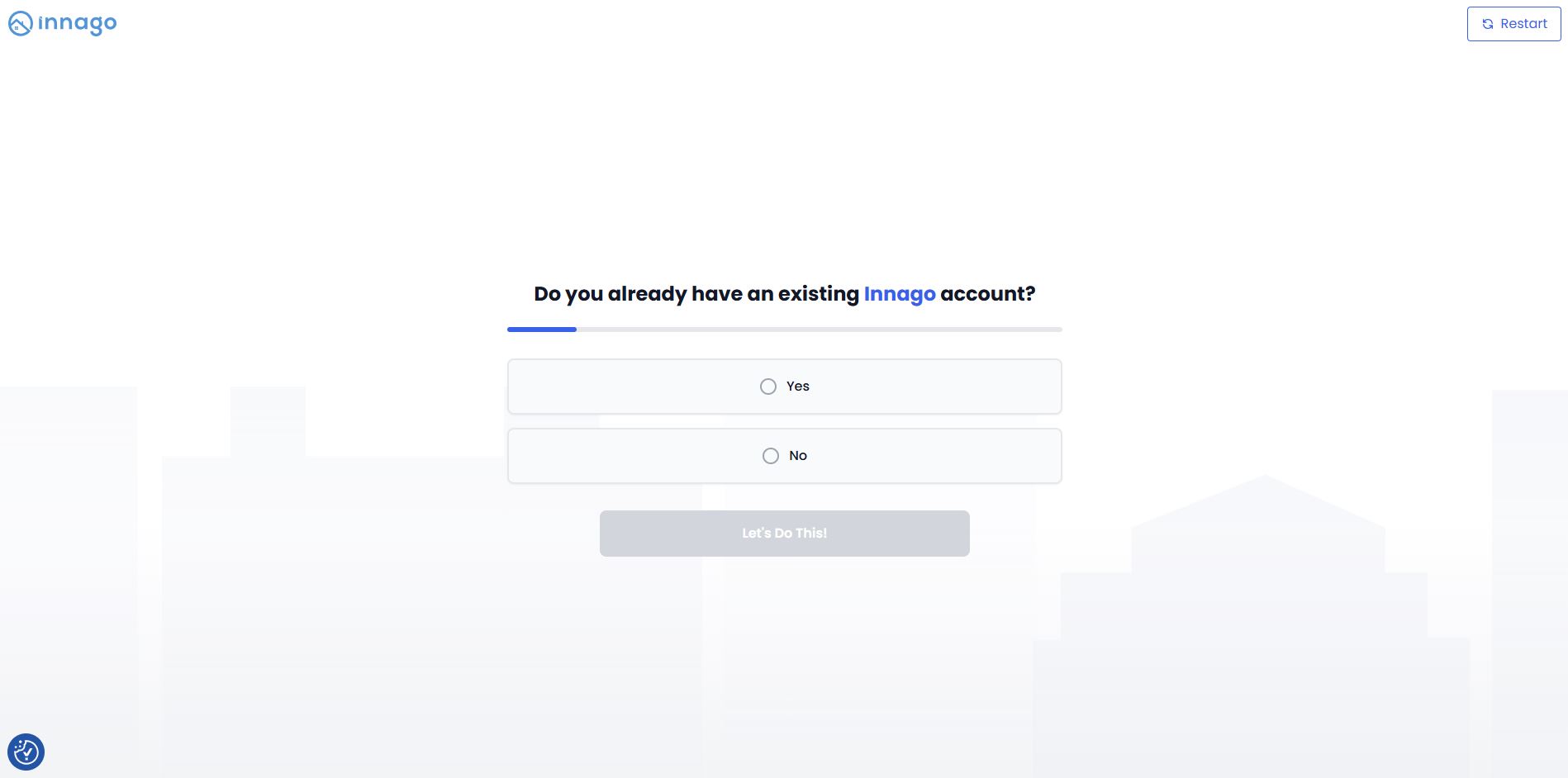
You’ll be asked whether or not you have an existing Innago account from here. If you select “Yes”, you will be redirected to the Innago login screen to complete the process from within your account. If you select “No”, you will be asked a set of questions to purchase renter’s insurance.
-
Once insurance has been purchased, you’ll see a confirmation page, and details will also be e-mailed.
From the Tenant Account:
-
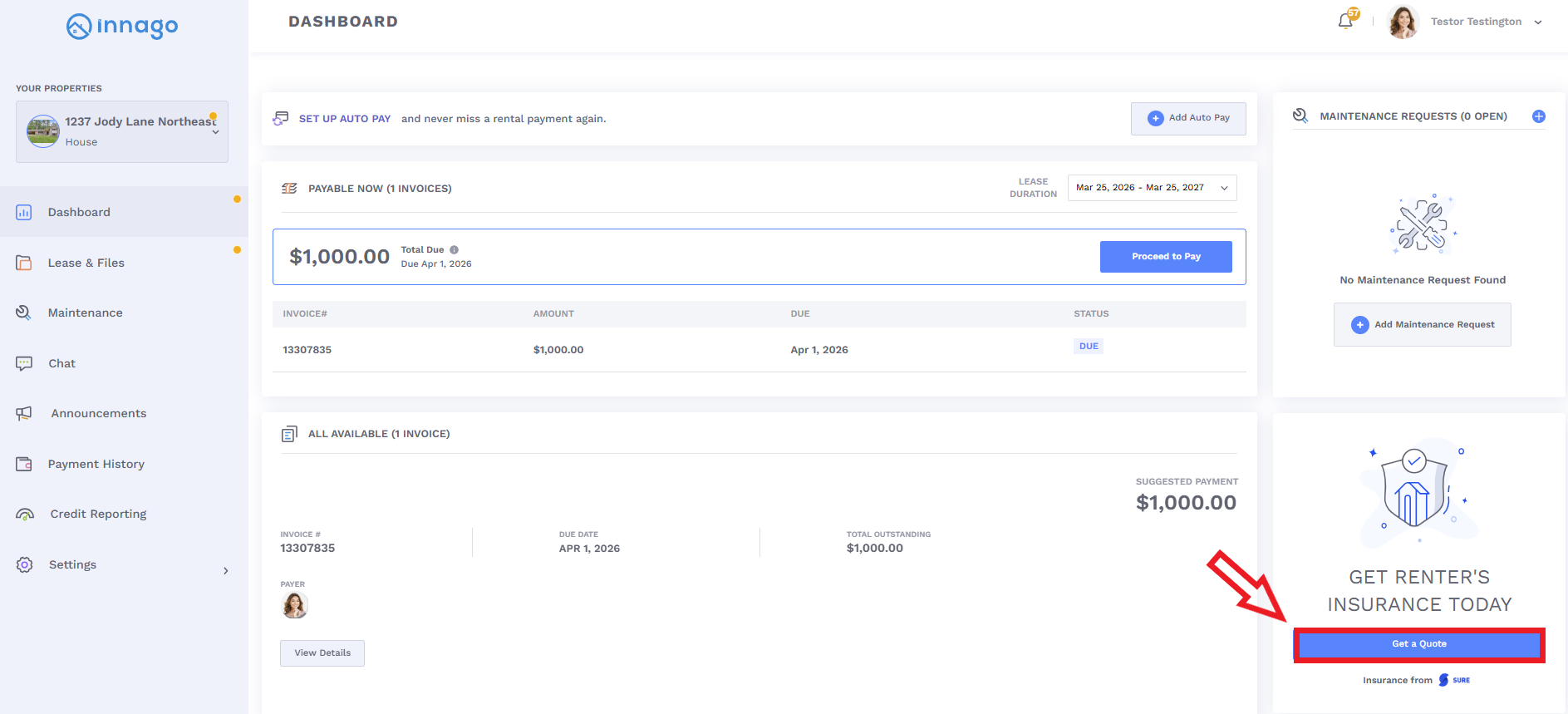
Once logged in, you’ll see a section of your Dashboard that says “Get Renter’s Insurance Today”. Click “Get a Quote” to proceed.
-
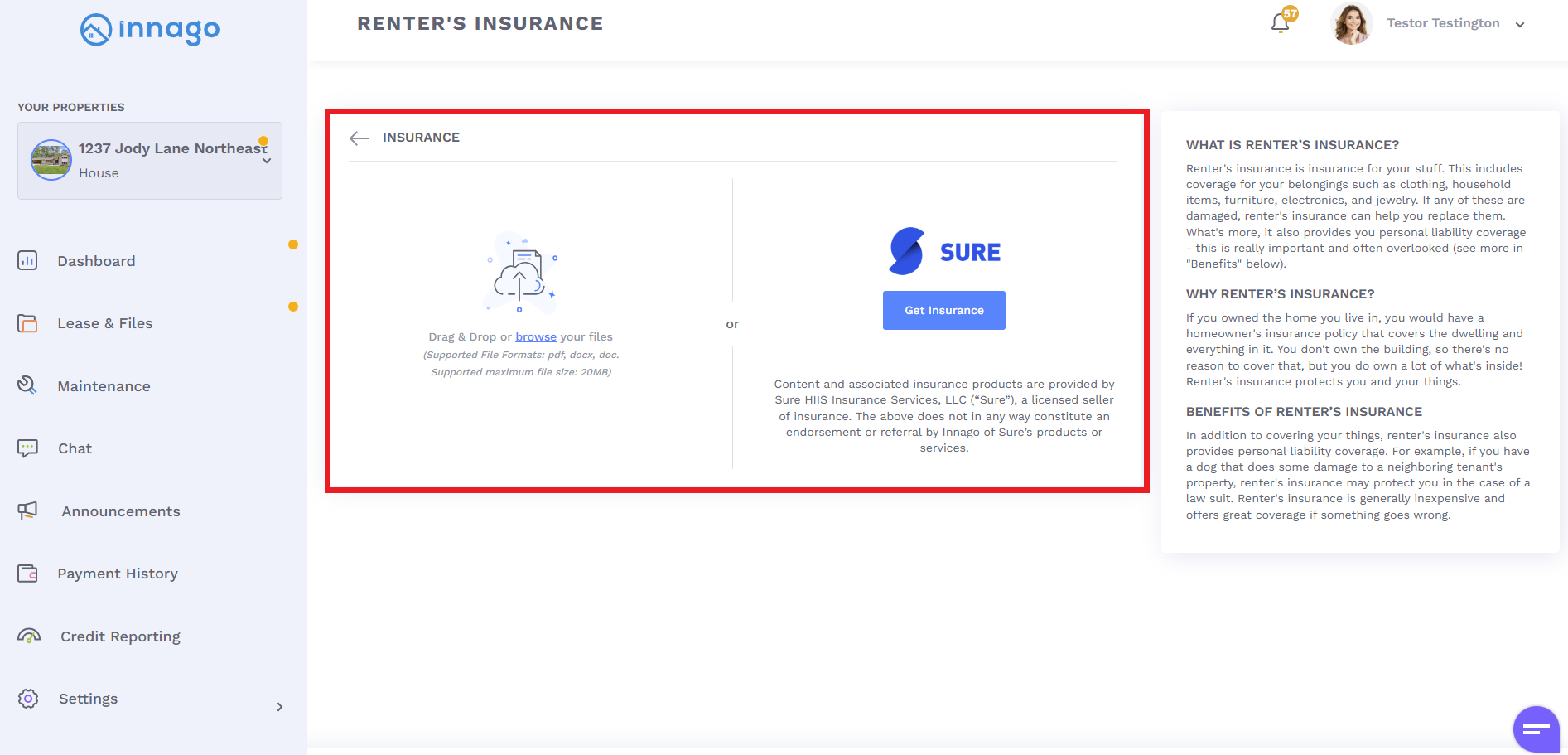
You’ll then have the option to either upload proof of previously purchased renter’s insurance, or continue with applying for Sure coverage by clicking “Get Insurance”.
-
If you choose to apply for insurance, you will be asked a set of questions in order for Sure to provide a quote.
-
Once insurance has been purchased, you’ll see a confirmation page, and details will also be e-mailed.
Uploading Proof of Renter’s Insurance
You’ll need to be logged into your Innago account to upload proof of previously purchased renter’s insurance.
-
Once you’re logged in, you’ll see a section of their Dashboard that says “Get Renter’s Insurance Today”. Click “Get a Quote” to proceed.
-
You’ll then have the option to upload your policy document or declaration of insurance as a .pdf, .docx, or .doc file.
Once insurance is purchased or proof of insurance is uploaded, your landlord will be able to view and verify your documentation from within their Innago account.