
We understand that there may be situations where the lease end date was entered incorrectly. For example, if a lease was intended to expire on June 30, but the end date in Innago was mistakenly entered as July 31, the lease will now appear as expired on July 31.
No need to worry—this can be corrected directly from your end. Simply follow the steps below to update the lease end date.
- Visit the Leases & Files page from the main menu on the left side of your screen.
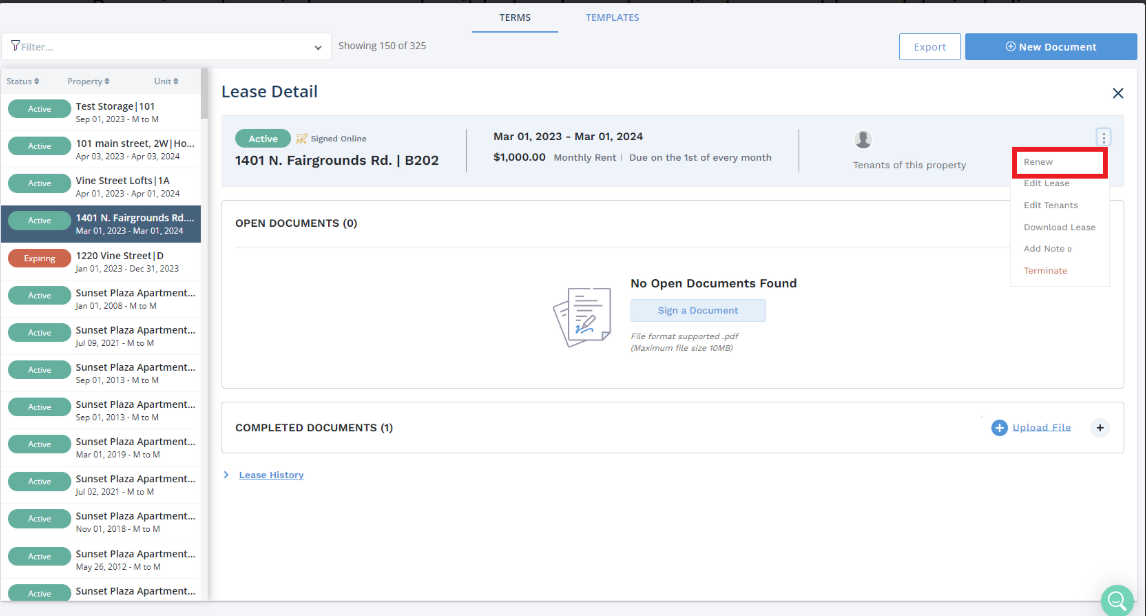
- Select the lease term that you’d like to renew. This will take you to the Lease Details page.
- On the Lease Details page, click the three vertical dots located in the top-right corner, then select Renew.
- Next, choose the Renew and Extend option. Once you’re at this point, it will provide you with an option to change the end date for lease and there you can enter the end date of your choice, even a back date.
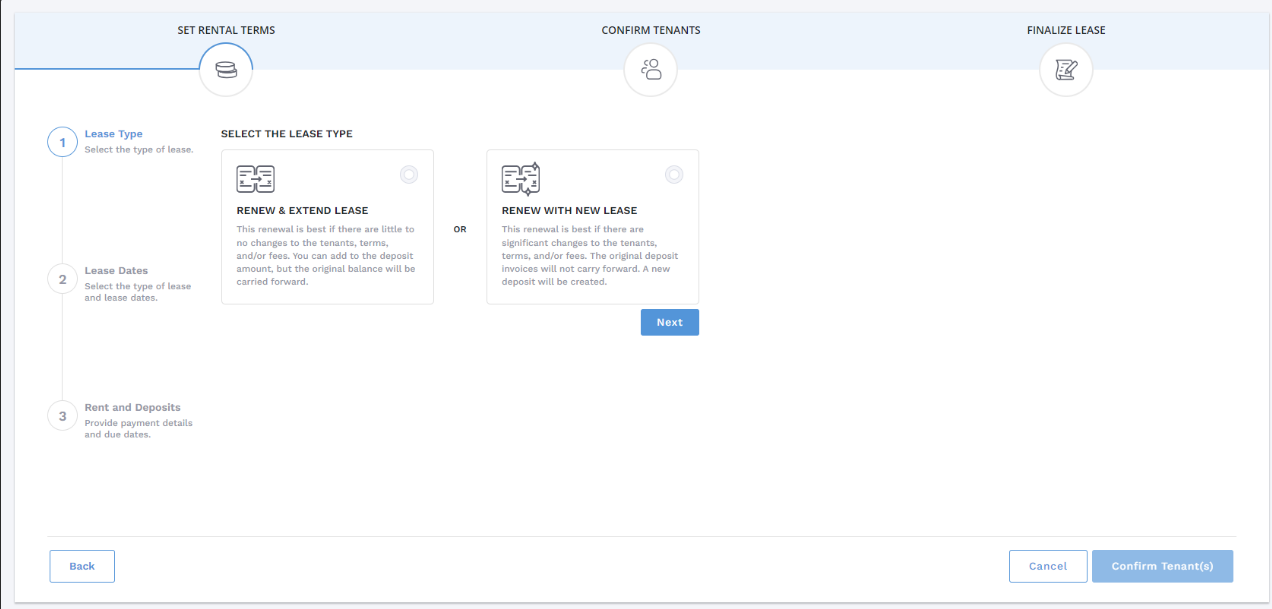
- Click “Confirm Tenants” and then finalize your changes on the next screen. The end date will be updated accordingly. Please note, Tenants will not be notified of these changes.