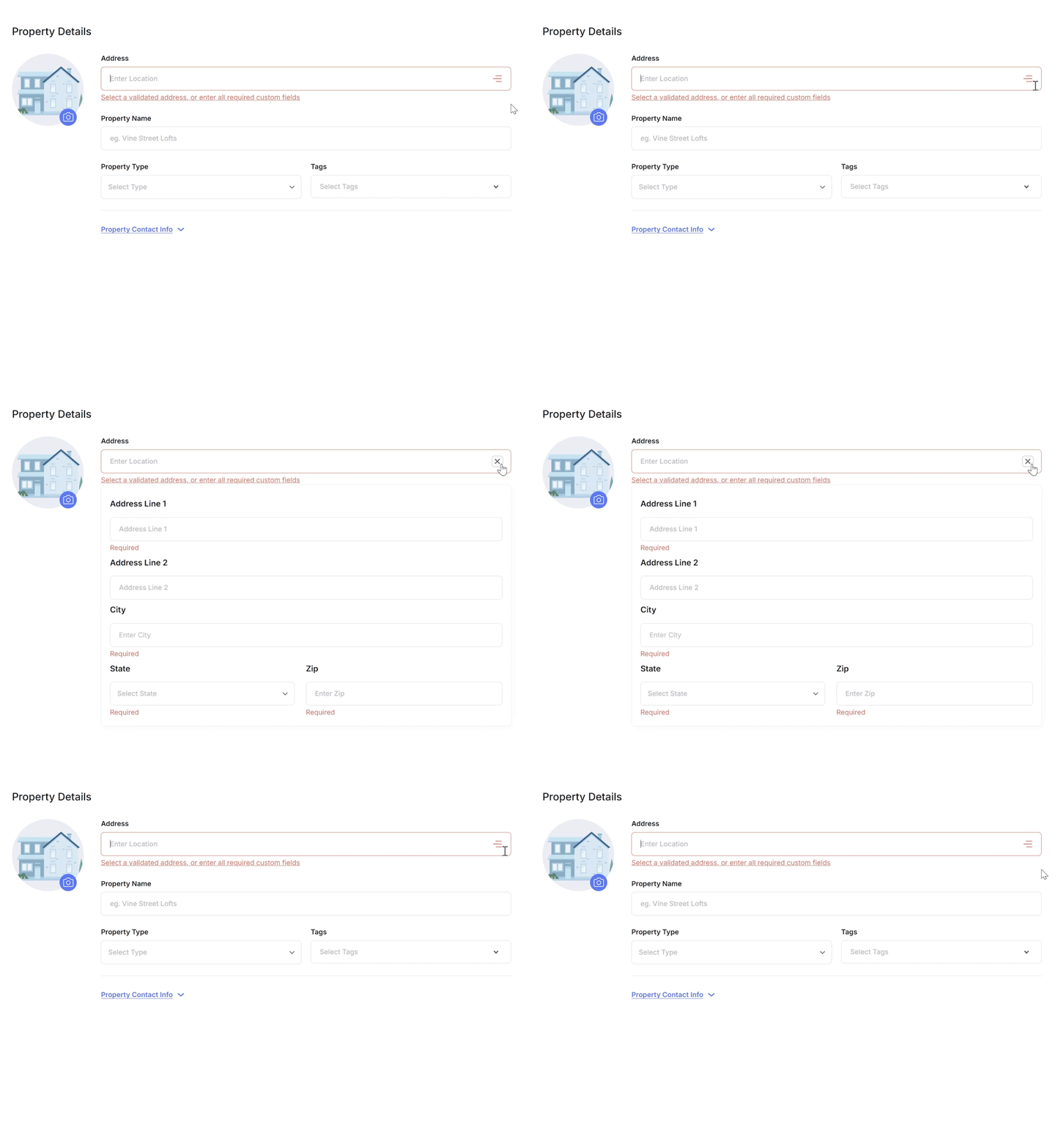
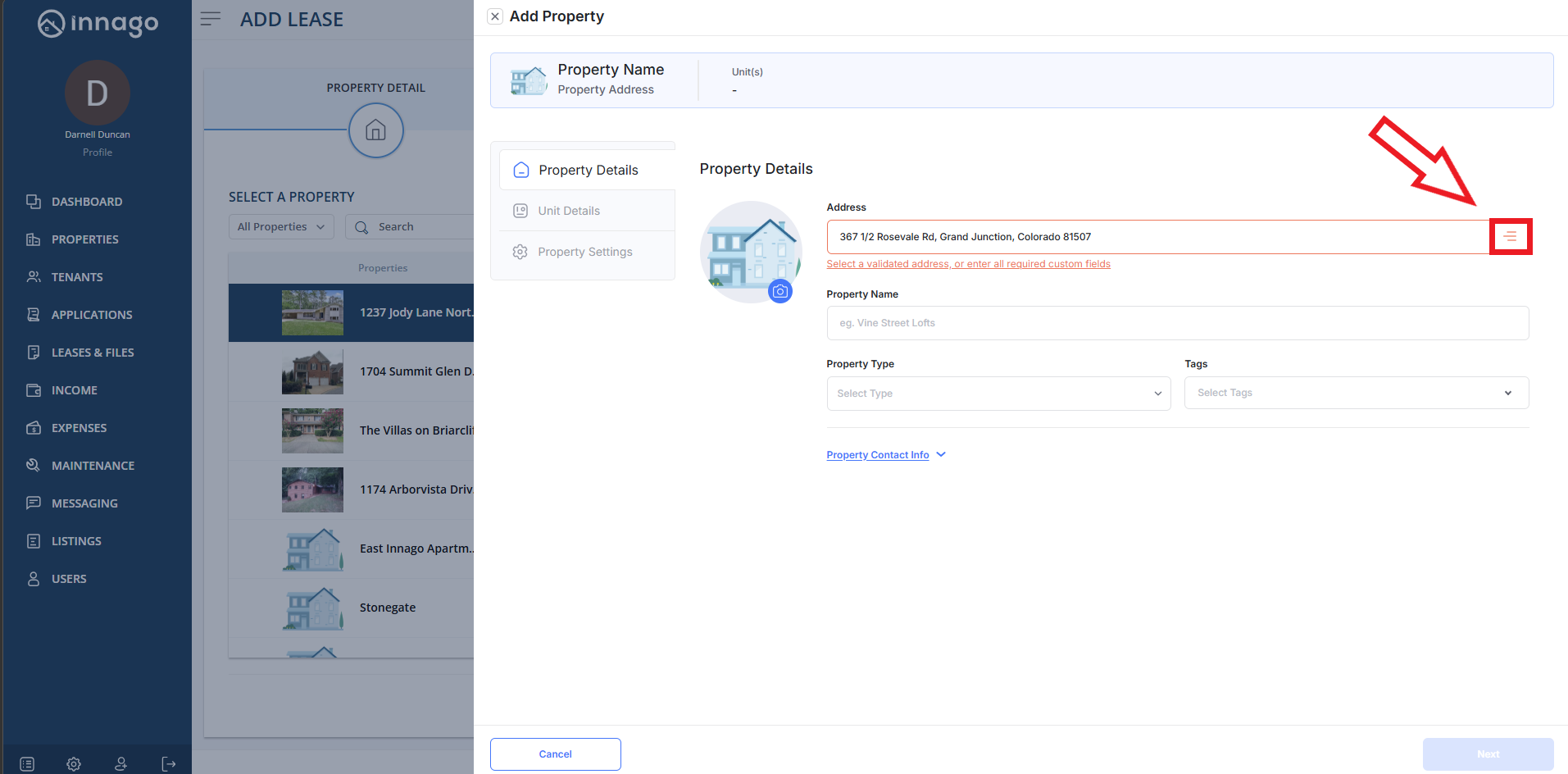
If you’re creating a property in Innago, or editing a property, you may have cases where your address doesn’t populate automatically via Google Maps. You may even have an address that does populate, but cannot be accepted in the form. No worries! You can simply click the hamburger icon (three horizontal lines) to the right of the “Address” field to manually enter custom address information.
After you’ve clicked the hamburger icon, you can simply update your address in the new fields that appear. Please note, you will want to update fields starting with Address Line 1. If you edit the main “Address” field, you will still encounter the same issue. Click “Next” once you’re done to proceed.
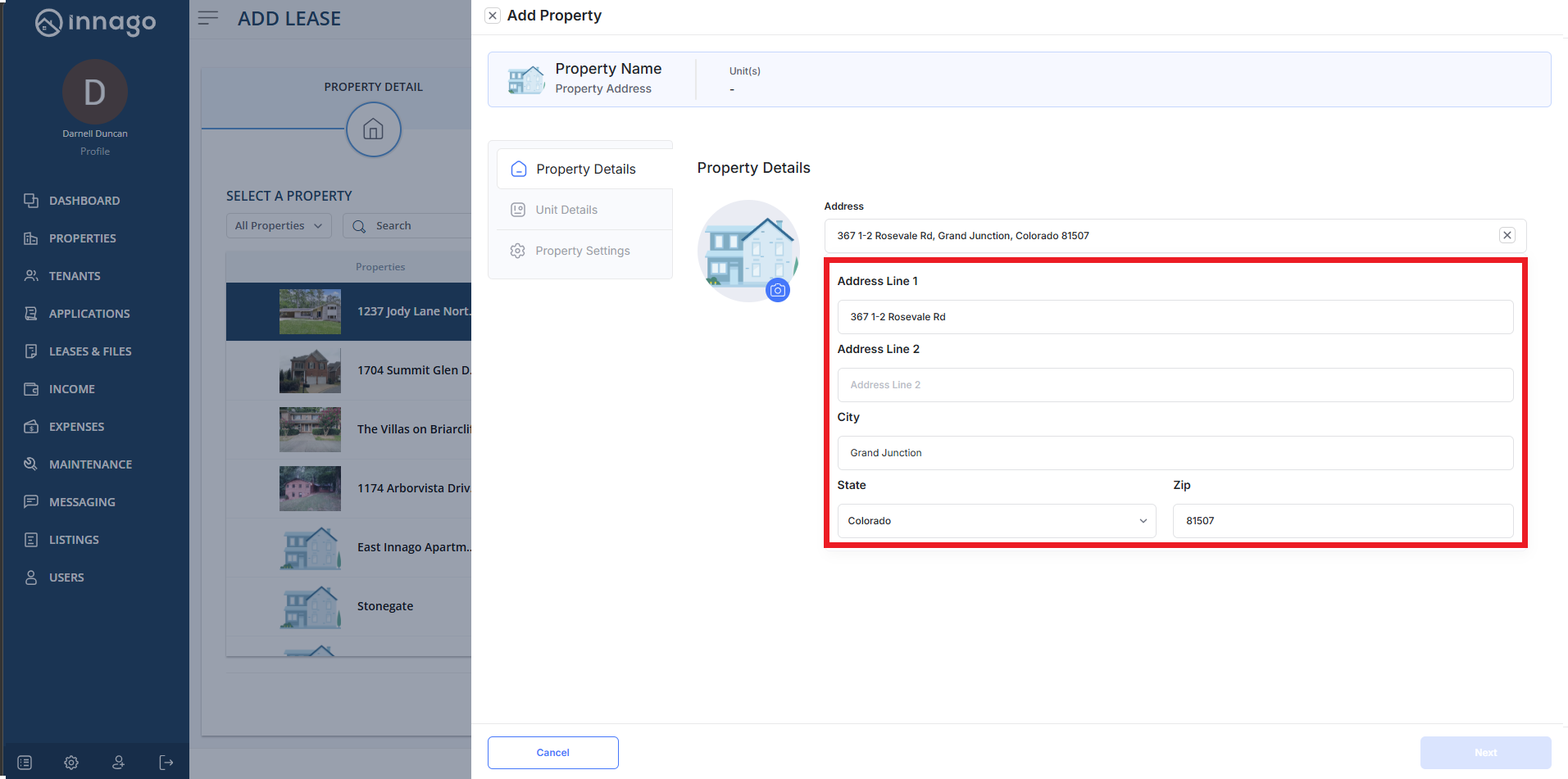
Please note, 1/2 addresses will not be accepted due to character limitations. As shown in the example above, you will have to input 1-2 to reflect a “1/2” address.