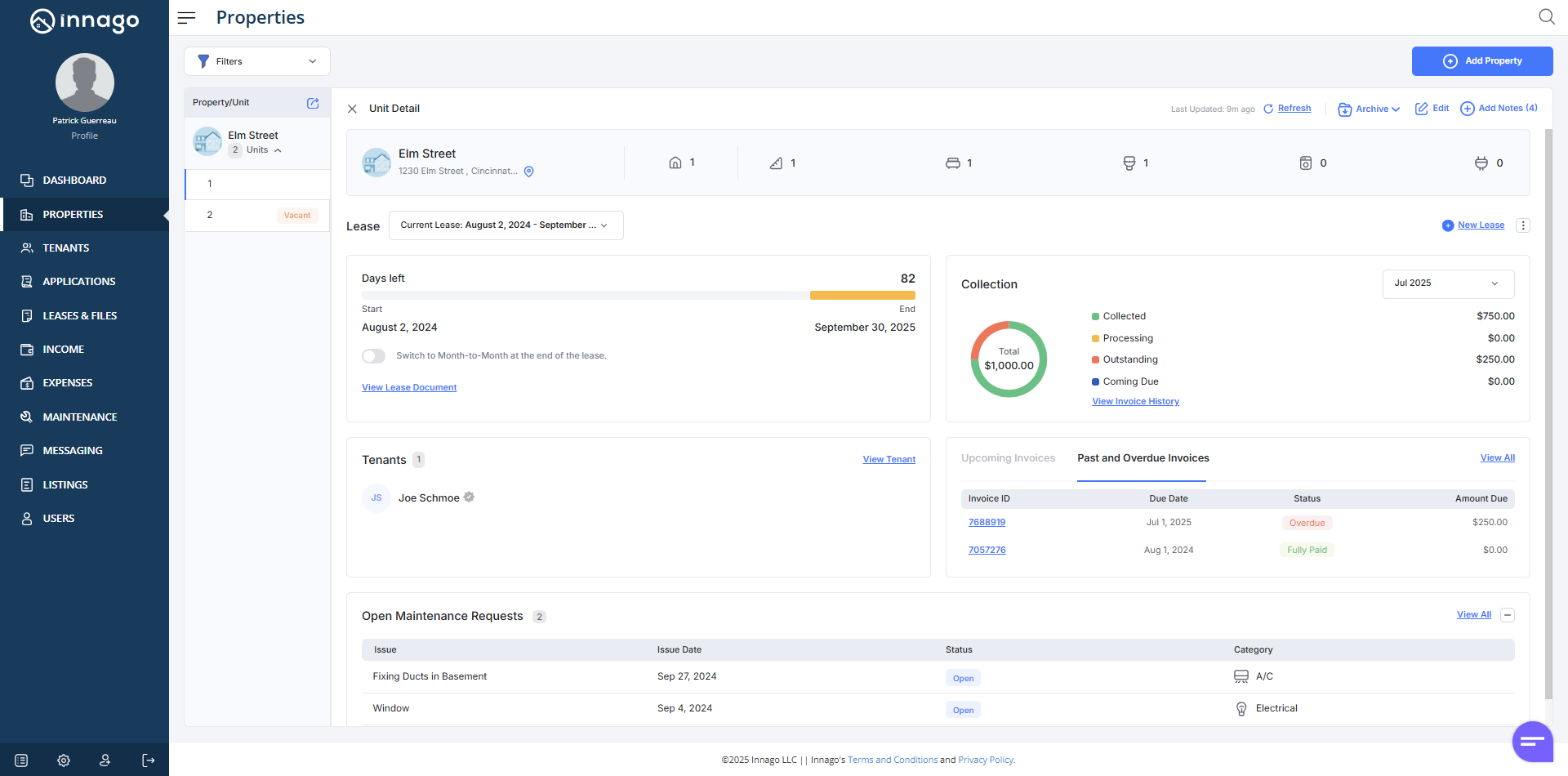
If you want to quickly edit or find various information about a particular unit, you can access your Unit Detail. In order to access it, you’ll take the following steps:
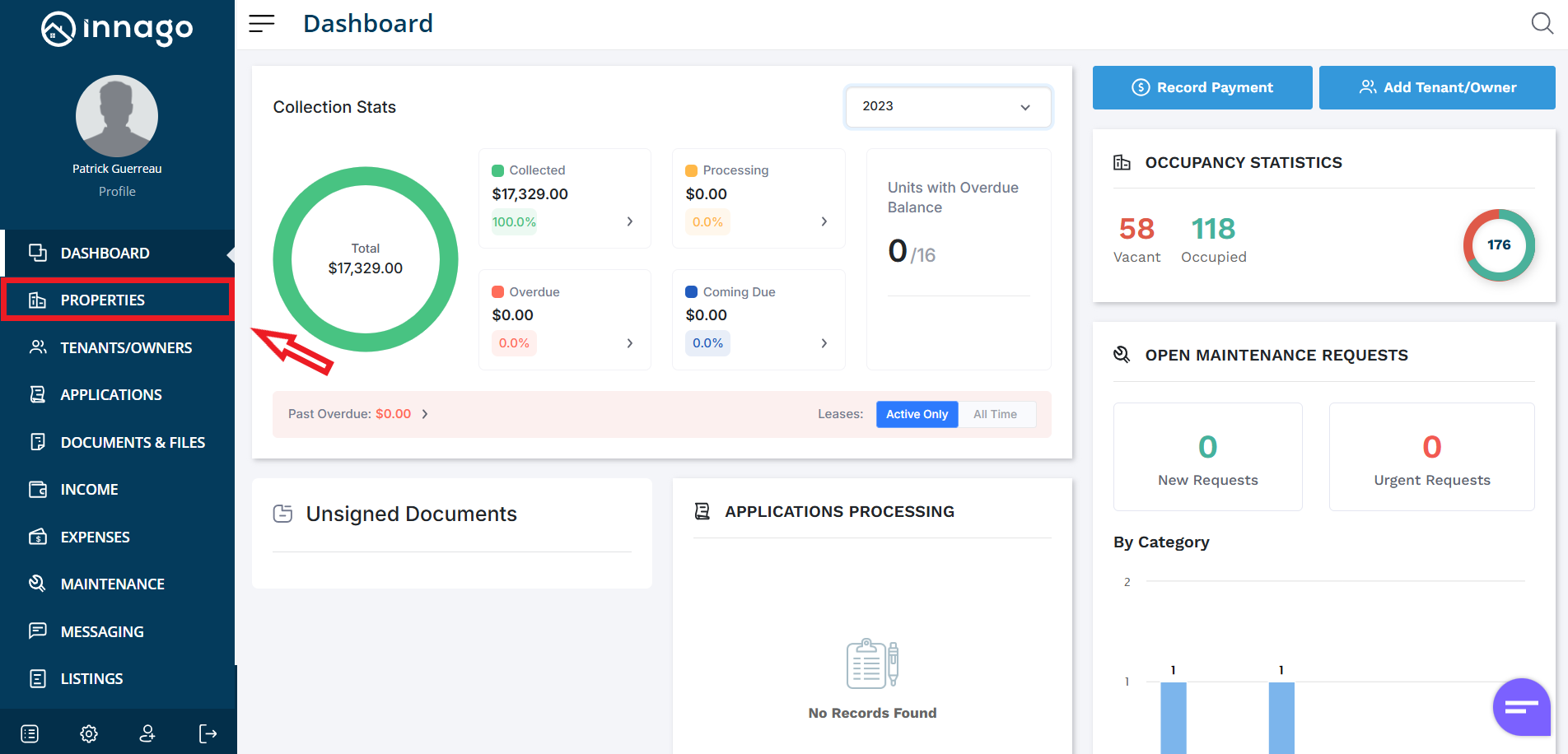
1. From the Innago menu on the left, click “Properties”.
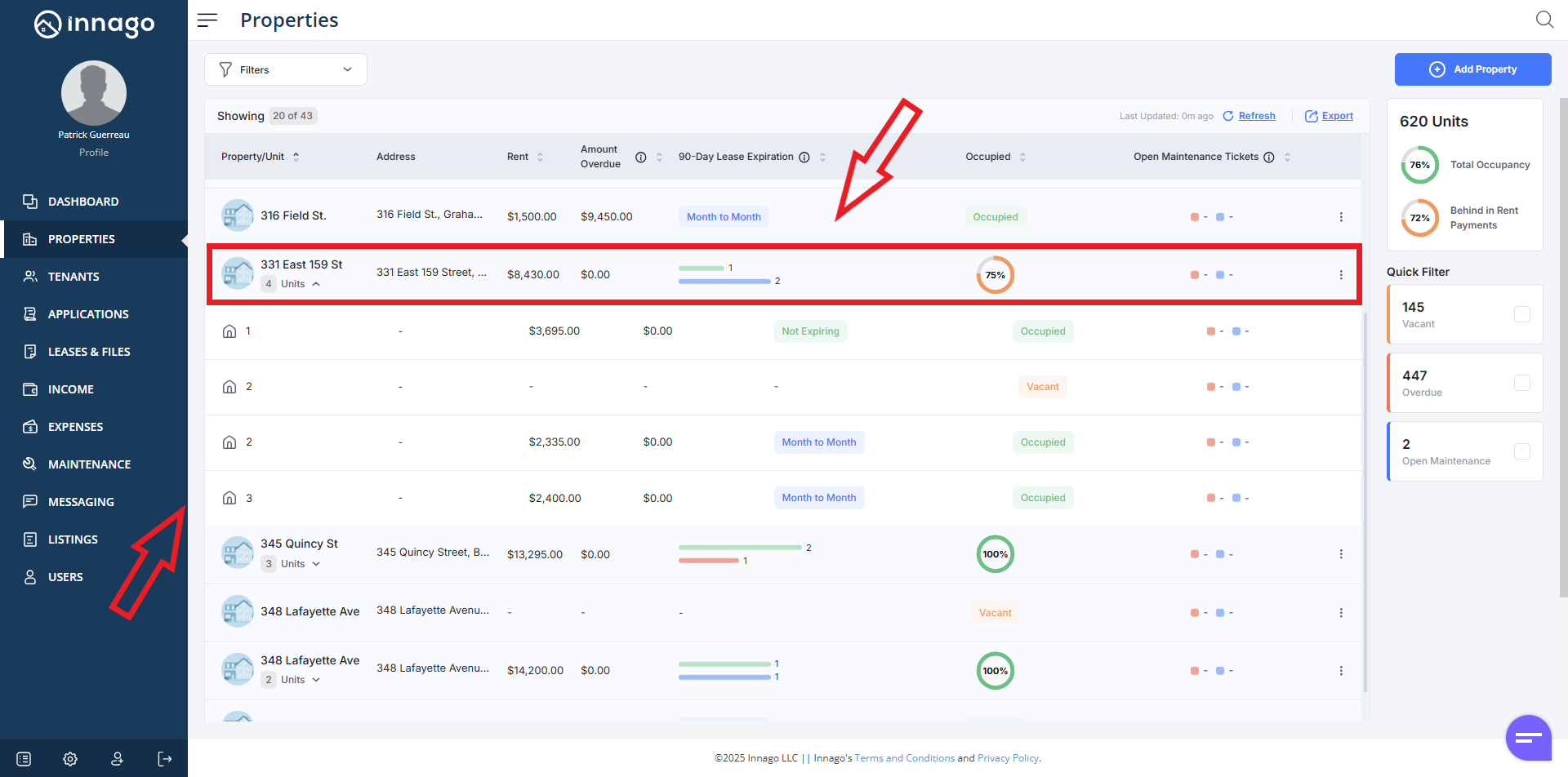
2. Select the property/unit you would like to access from your property list by clicking anywhere on the row of that property. If the property only has one “unit”, you’ll immediately be taken to the Unit Detail page. If the property has more than one unit, a list of units will expand after clicking on the property. You’ll just click on one of those units from that list in order to access your Unit Detail.
Once you’ve accessed the Unit Detail page, you have a number of functions you can access:
Archive – If you need to “remove” a property from Innago, you can archive it by pressing that button
Edit – You can make various edits to the unit and the property as a whole
Add Notes – You can create internal notes and upload files only visible to you and your users (no tenants will be able to view these)
Current Lease/Previous Lease/ Future Lease – You can toggle between information for various lease terms associated with this specific unit
New Lease – You can create a completely new lease term
Action Menu (Three Vertical Dots) – Located to the right of the “New Lease” button is your action menu. This will give you access to additional functions such as:
- Renew – Initiates lease renewal
- Edit Lease – Allows you to edit lease/rental terms
- Edit Tenants – Allows you to edit tenant contact, rental share and invoice settings
- Terminate Lease – Initiates lease termination
- Initiate Damage Report – Initiates Damage Report flow
View Lease Document – If you’ve uploaded a lease or signed a lease through Innago, you can access the document from here
Collection Stats – This section gives you a breakdown of your various invoice statuses and the amount of funds in each status. You can click “View Invoice History” as well for more information.
Tenants – Review tenants associated with the lease you currently have selected. Click “View Tenant” for additional information.
Upcoming Invoices/Past and Overdue Invoices – A shortlist of invoices based on your selection. Click “View All” for a longer list.
Open Maintenance Requests – A list of the most recent maintenance requests for the unit. Clicking on one of these requests will open up your Maintenance Detail pane, where you can fully manage your requests, just as you can on the main Maintenance page.