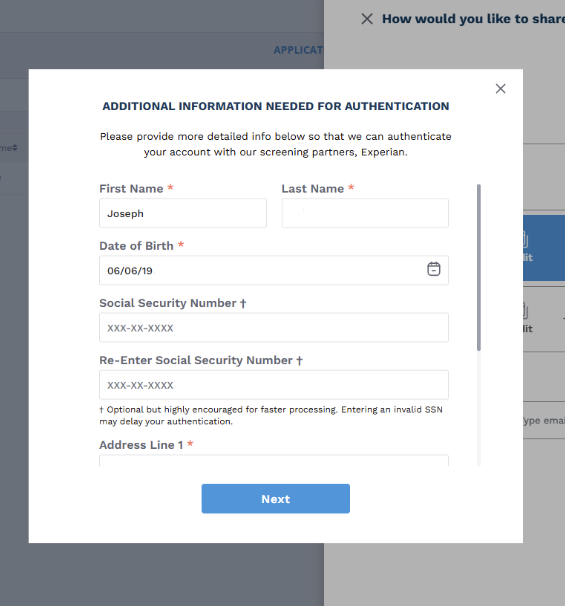
You’ll notice that there is now a Screening tab available on your Settings page. As soon as you enable tenant screening, you’ll be navigated here to finish setting up your screening options. For more information on the screening settings and the different tiers of screening, please click here.
2. If you have not yet determined the lease terms for the tenant(s), you can first request an application from the Applications page.
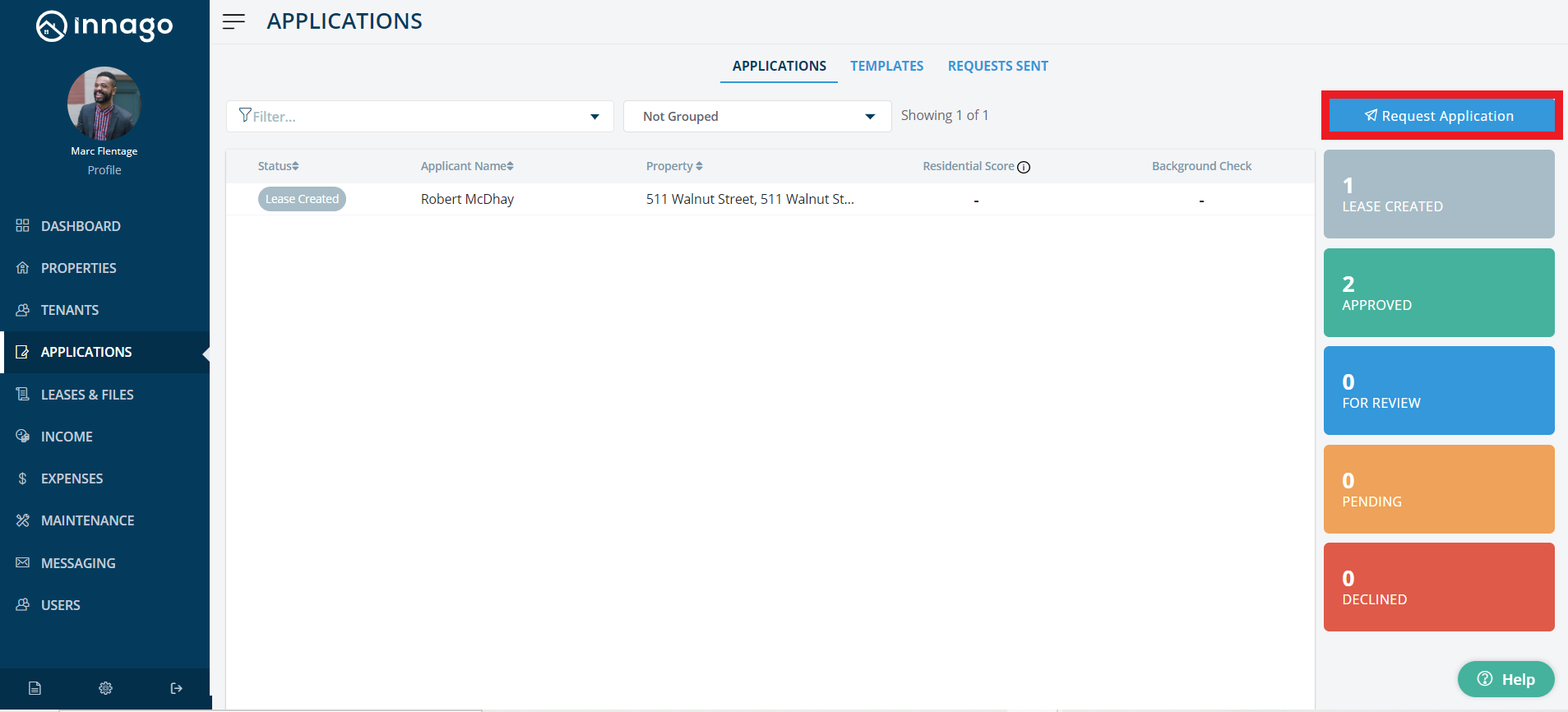
To request an application from the Applications page (Via Web Browser):
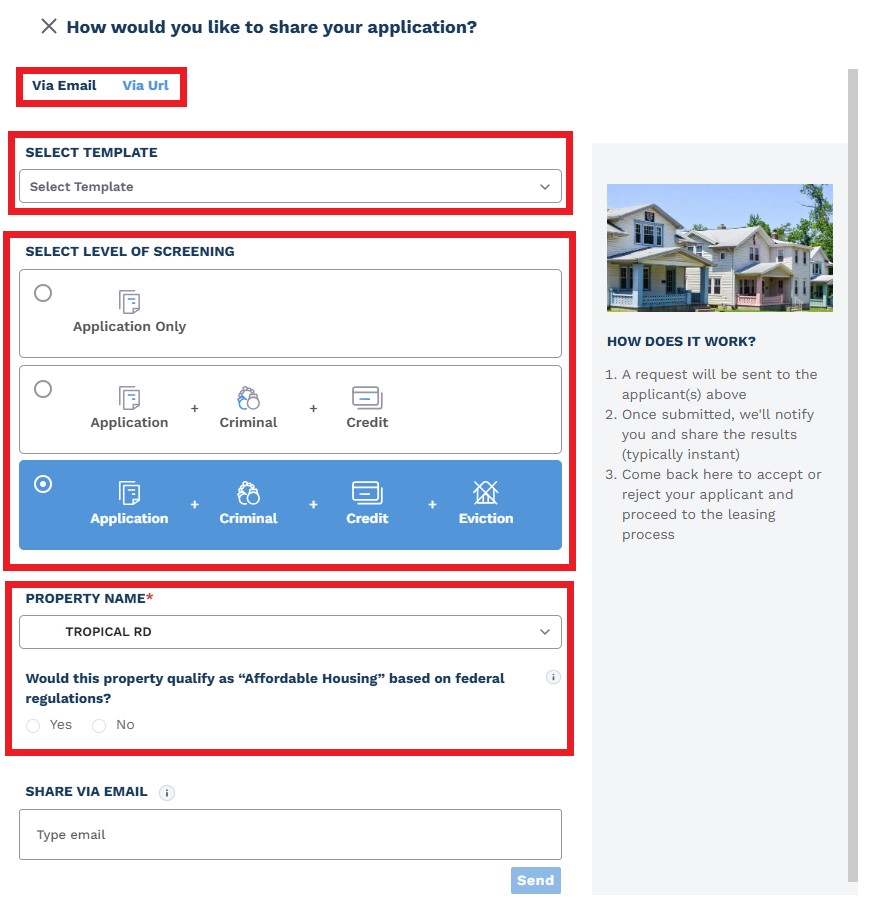
2. In the top right corner, click “Request Application”.
3. You can send out your application in the following ways:
• Share via Email – Enter your applicant’s email address here and your application will be accessible directly through their inbox.
• Share via URL – Copy the application URL. Anyone can click this link and use it. You can send it directly via email and text. You can also add it anywhere you market your rentals (e.g. Zillow, Craigslist, or your website). Try pasting this URL into your web browser to see what it will look like for your applicants!
Please note, you will have to select which property the application request is in reference to, and you’ll need to confirm if the property qualifies as “Affordable Housing” based on federal regulations. Choosing “Yes” may limit/restrict the screening results you’ll receive. If you’re unsure if your property qualifies, you’ll want to contact your local HUD office for guidance.
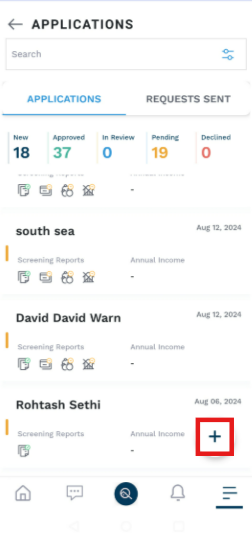
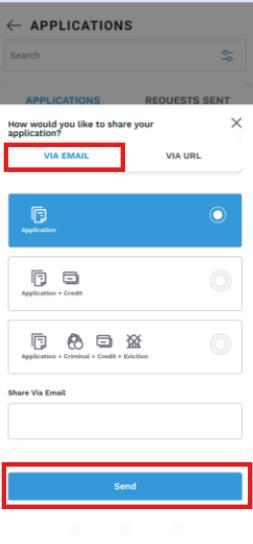
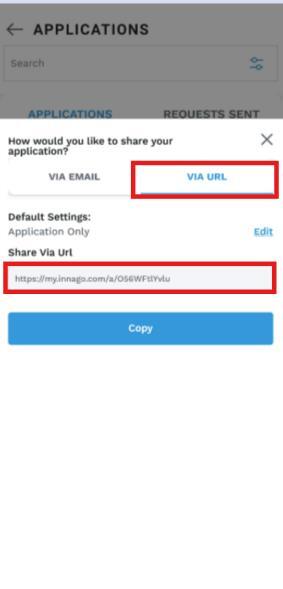
Here are the steps to request an application via Mobile App:
On the mobile app, you’ll follow a slightly different navigation path. It’ll be Main Menu > Applications> Click on (+) symbol (At Bottom right corner).
• Share via Email – Enter your applicant’s email address here and your application will be accessible directly through their inbox.
• Share via URL – Copy the application URL. Anyone can click this link and use it. You can send it directly via email and text. You can also add it anywhere you market your rentals (e.g. Zillow, Craigslist, or your website). Try pasting this URL into your web browser to see what it will look like for your applicants!