Innago Help Center

Advice and answers from the Innago Team

Generic selectors
Exact matches only
Search in title
Search in content
Post Type Selectors
post
Filter by Categories
01. Getting Started with Innago / Dashboard
02. Creating and Editing Properties
03. Adding Tenants and Lease Terms
04. Adding your Bank Accounts
05. Applications and Screening
06. Uploading / Signing Leases and Documents
07. Viewing and Creating Invoices
08. Tracking Expenses
09. Tenant Communication
10. Managing Maintenance
11. Marketing your Rentals
12. Team Management
13. Viewing Reports
14. Settings
15. Tenant Management
16. Referrals and Integrations
17. Help Articles for Tenants
A. Adding and Deleting Users
A. Adding, Deleting and Archiving Properties
A. Adding, Editing and Deleting Tenants
A. Creating New Invoices
A. Customizing Application Templates
A. Learning the Basics
A. Messaging your Tenants
A. Notifications
A. Setting up a Document Template
Accelerent
B. Adding / Editing Charges and Fees
B. Adding Lease Terms
B. Creating Messaging Templates
B. Editing Property Details
B. General Settings
B. Managing User Roles
B. Online Document Signing
B. Profile
B. Requesting Applications
C. Assigning Bank Accounts to Properties
C. Editing Lease Terms
C. Late Fees
C. Notes
C. Recording Payments and Managing Invoices
C. Tenant Screening and Reports
C. Uploading and Downloading Documents
D. Applications and Screening FAQs
D. Crediting, Deleting and Exporting Invoices
D. General FAQs
D. Property Settings
D. Renewing and Terminating Leases
D. Renters Insurance
E. HOAs
E. Income FAQs
E. Special Lease Scenarios / Cases
Integrations
PlacePay General FAQ's
PlacePay General FAQ’s
PlacePay Landlord
PlacePay Landlord
PlacePay Tenant
PlacePay Tenant
Uncategorized

There may be situations in which a security deposit return needs to be cancelled. Good news! We have the capability to cancel deposit returns before 5PM EST the same business day of the transaction. Unfortunately, if the cancellation window passes, we will be unable to intervene with the return.

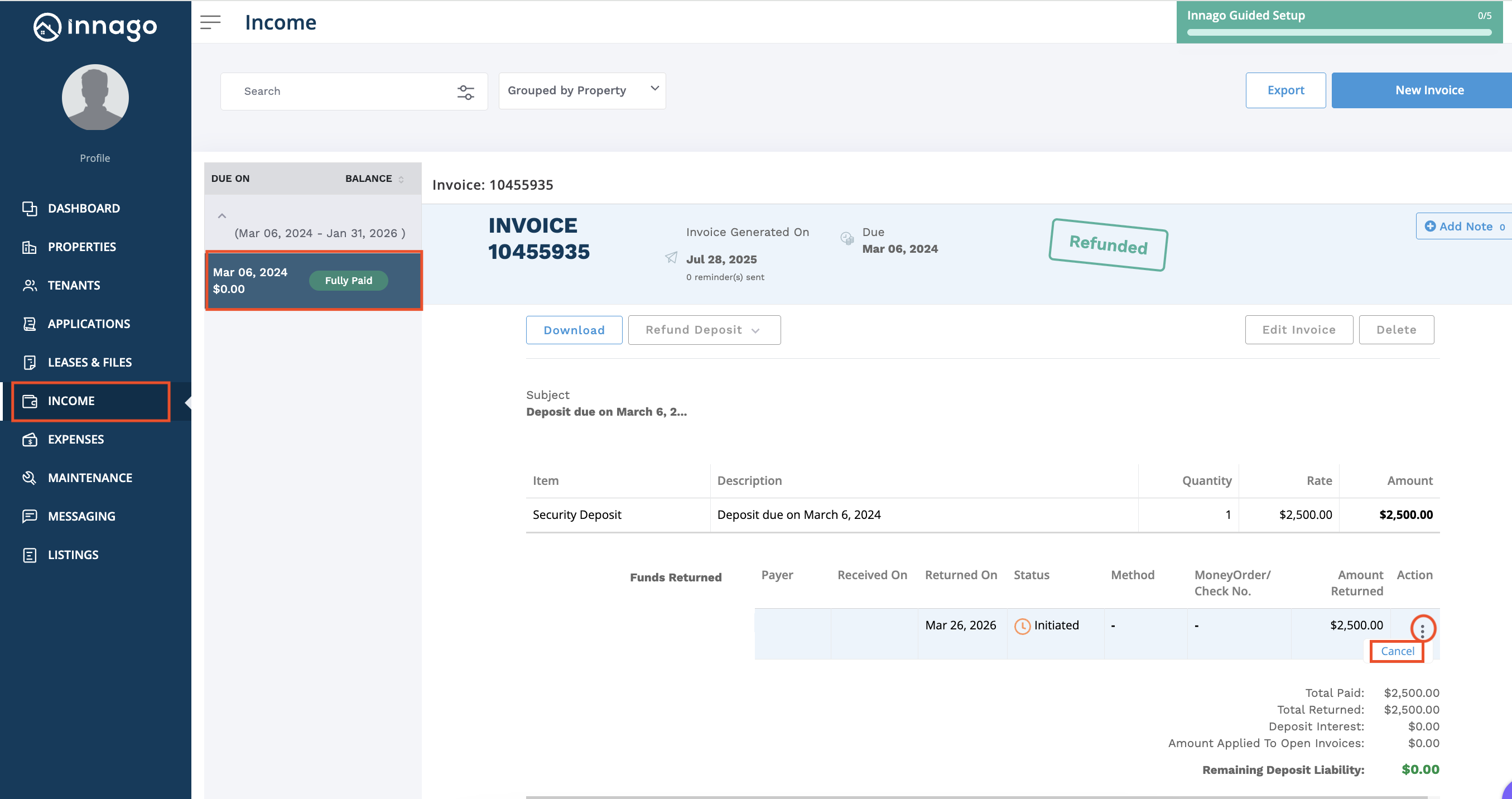
If you wish to cancel a security deposit return within the cancellation window, please follow these steps

  1. Click on the Income tab from your main menu
  2. Locate the Security Deposit invoice (you can learn how to use filters to open the invoice by clicking here)
  3. Once the invoice details are open, click the 3 vertical dots next to the “Initiated” return
  4. Click “Cancel”


Please note, if the window has passed to return a security deposit, the cancel option will not be available. If this is the case, the deposit will continue processing and will be returned to the tenant.

If the tenant is willing to assist, there is another option for the security deposit return to be cancelled. If the tenant does not select the return destination from their account within 5 days and there is no backup address provided, the return will automatically be cancelled. For more information about tenants receiving their security deposit returns, click here