
If you ever have a payment from Innago reversed out of your bank account, you can easily review details of the reversal by going to your Bank Deposit report. The most common reason for a reversal is when a tenant has an eCheck payment reject, and they do not repay the invoice within 3 business days. For more information on why payment reversals take place, please click here.
Viewing Payment Reversals in Innago:
1). At the bottom left corner of the Innago main menu, click “Reports” (the paper icon). You’ll be automatically taken to your Bank Deposit report.
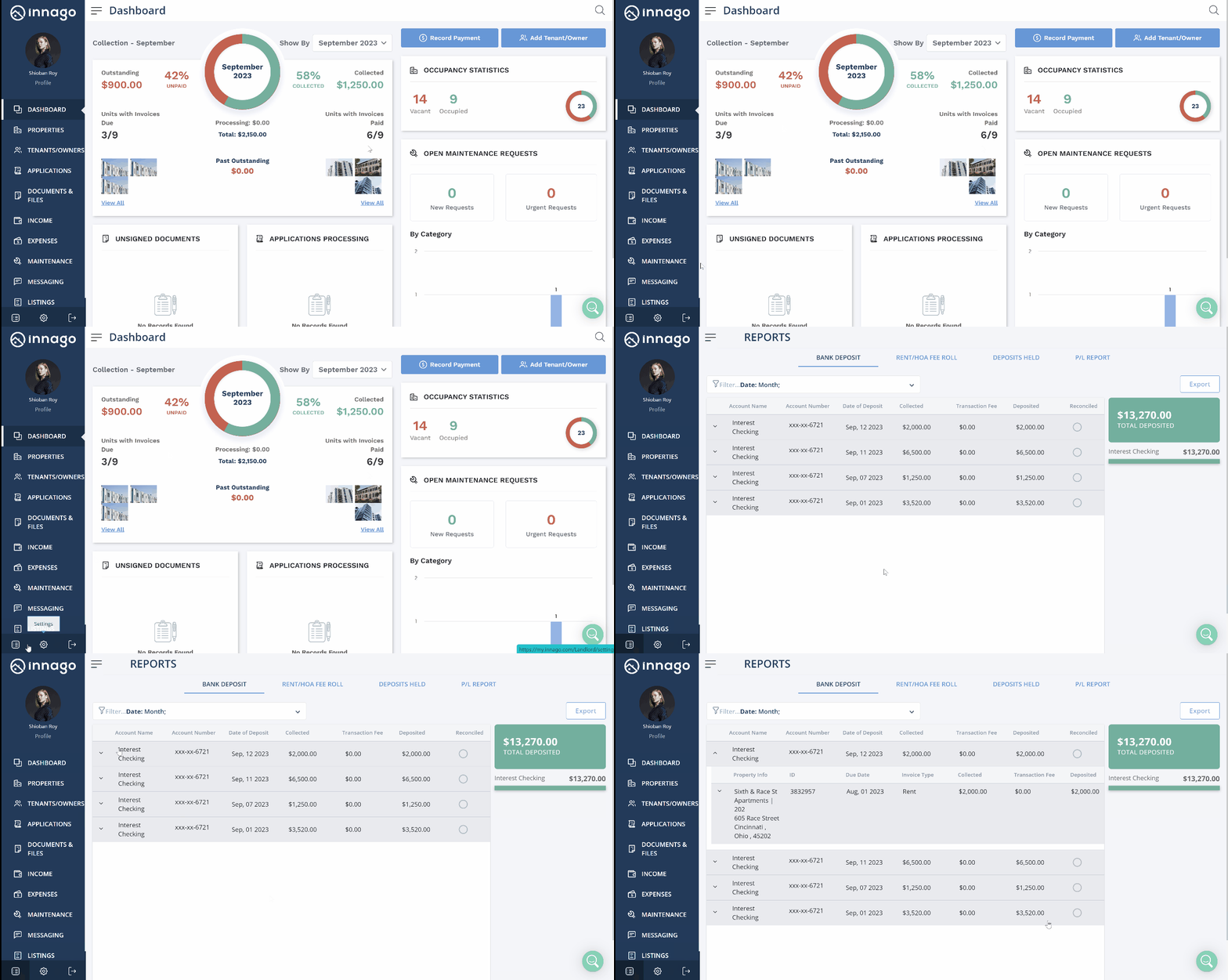
2). By default, you’ll only see results for deposits and reversals from the current month. Use the filter tool as needed to expand the date range to include the date of the reversal.
3). Any results with red text in parenthesis will indicate a reversal. Click on the result to see more details, including the tenant, the invoice number etc.
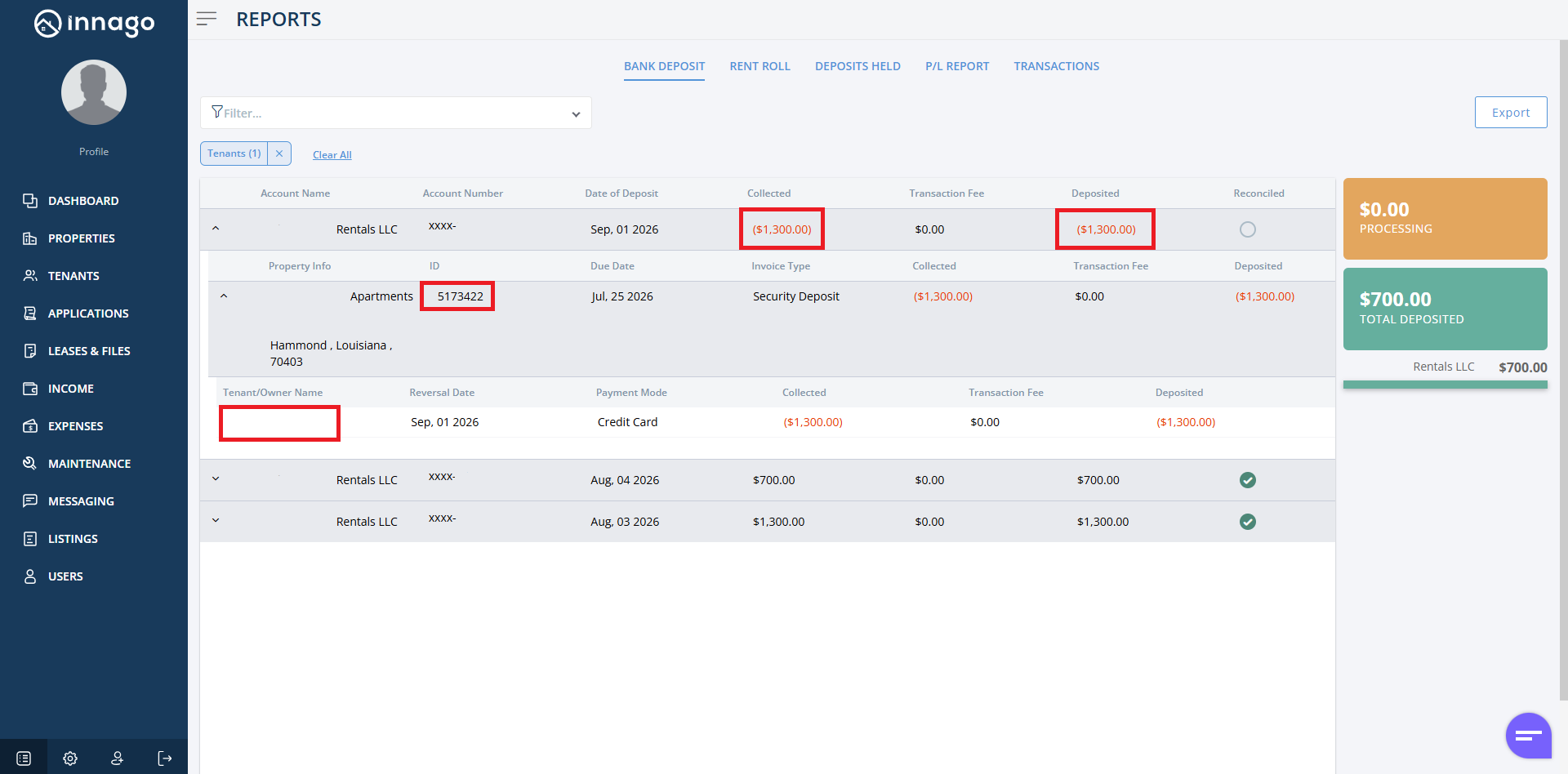
You can then take this information to locate the invoice on your Income page if you’d like to see even more details about the invoice, and if you’d like to review Invoice History. For more information on using filters to locate invoices on the Income page, please click here.