Some items, such as pet fees or water charges, need to be paid by your tenants on a recurring basis. You can add these items as invoices and set them to repeat so that you don’t have to go through the hassle of constantly recreating them.
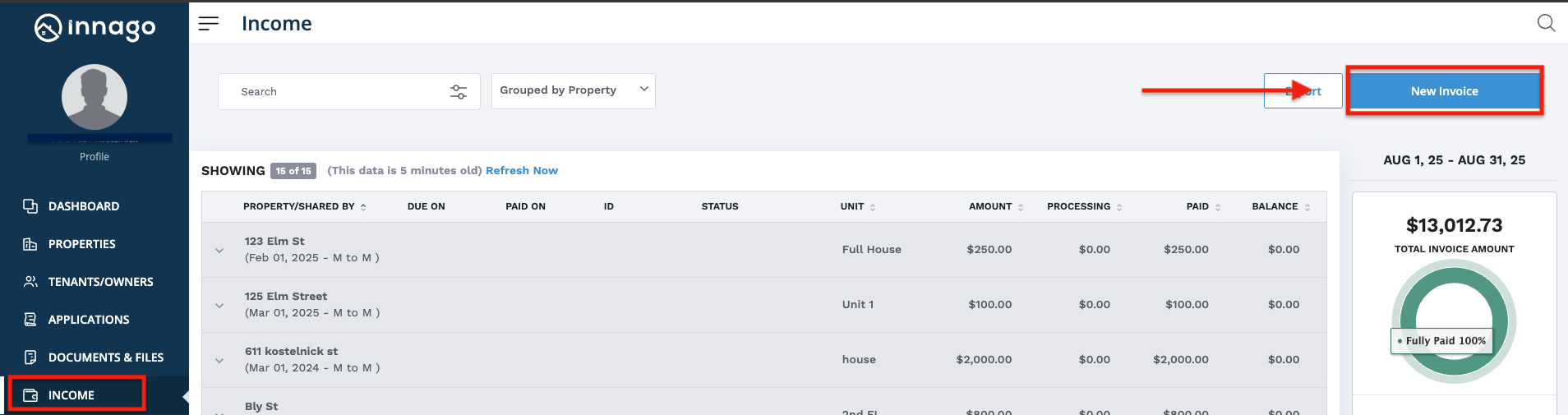
1. From the Innago menu on the left, click ‘Income’.
2. In the top right corner, click ‘New Invoice’. This will take you to the Property Detail Page.
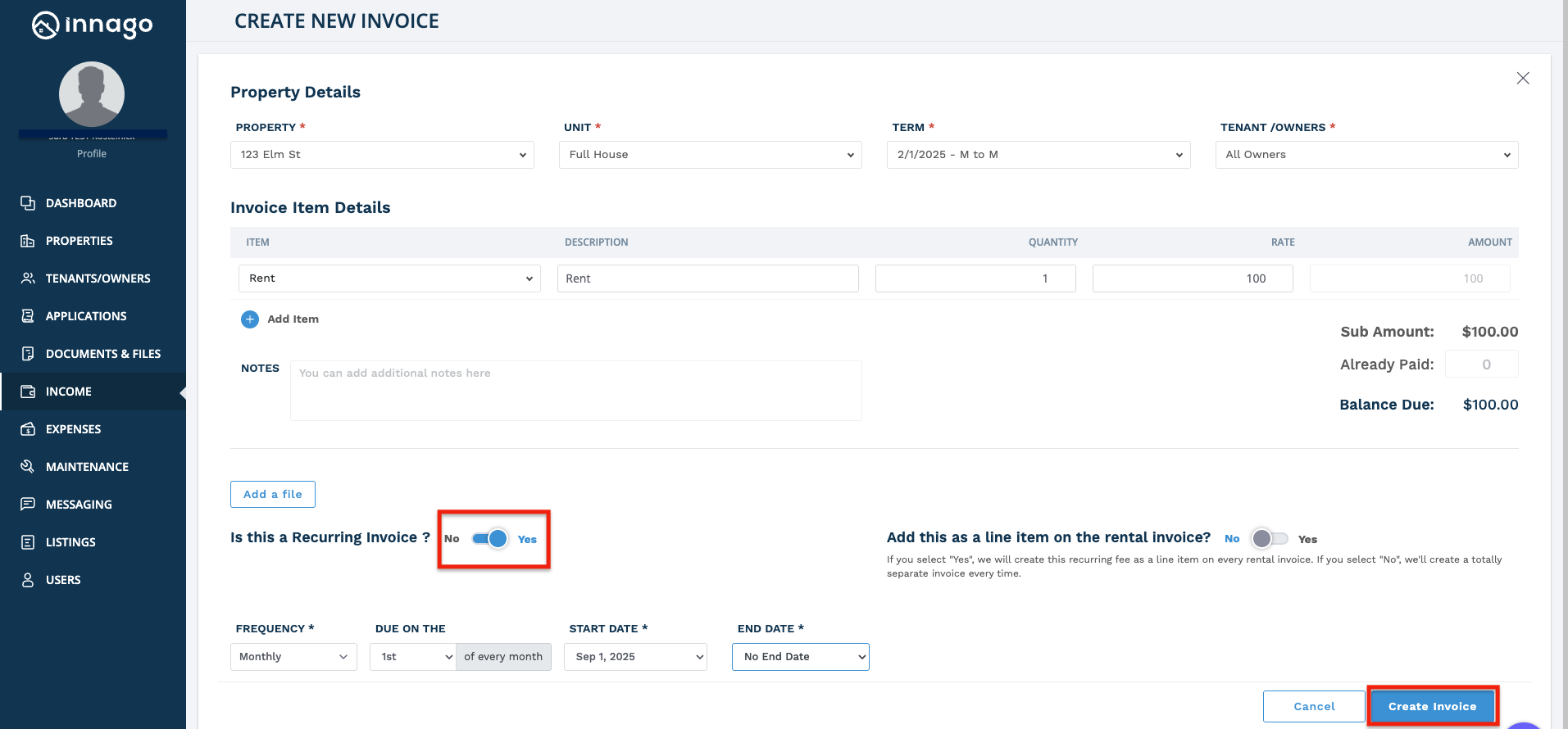
4. You’ll then need to add the details of your invoice, including the Invoice Type, Property and Unit, Amount due, and Description.
5. On this screen on the bottom left hand side, you will see the following prompt: ‘Would you like to make this invoice recurring?’. Toggle this option to ‘Yes’ to set the invoice as recurring.
6. You can then select whether you would like to create this fee as a line item on every rental invoice.
7. Then select the Frequency, Due on, Start & End dates.
8. Click ‘Create Invoice’ and your recurring invoice is all set!
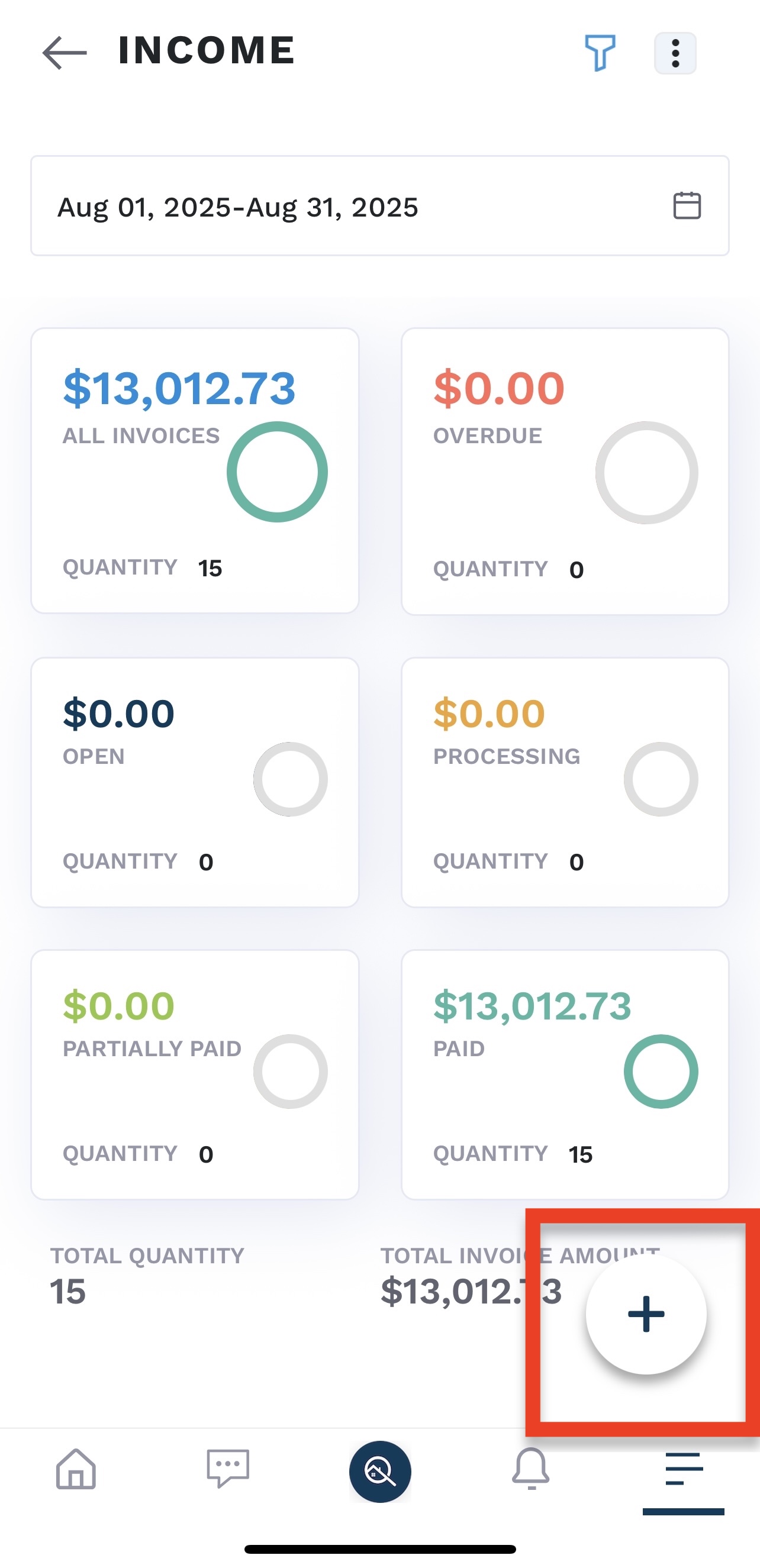
If you are using the mobile app, you can create recurring invoices by following a similar process.
1. From the Income Tab, you are going to select the “+” button in the bottom right hand corner
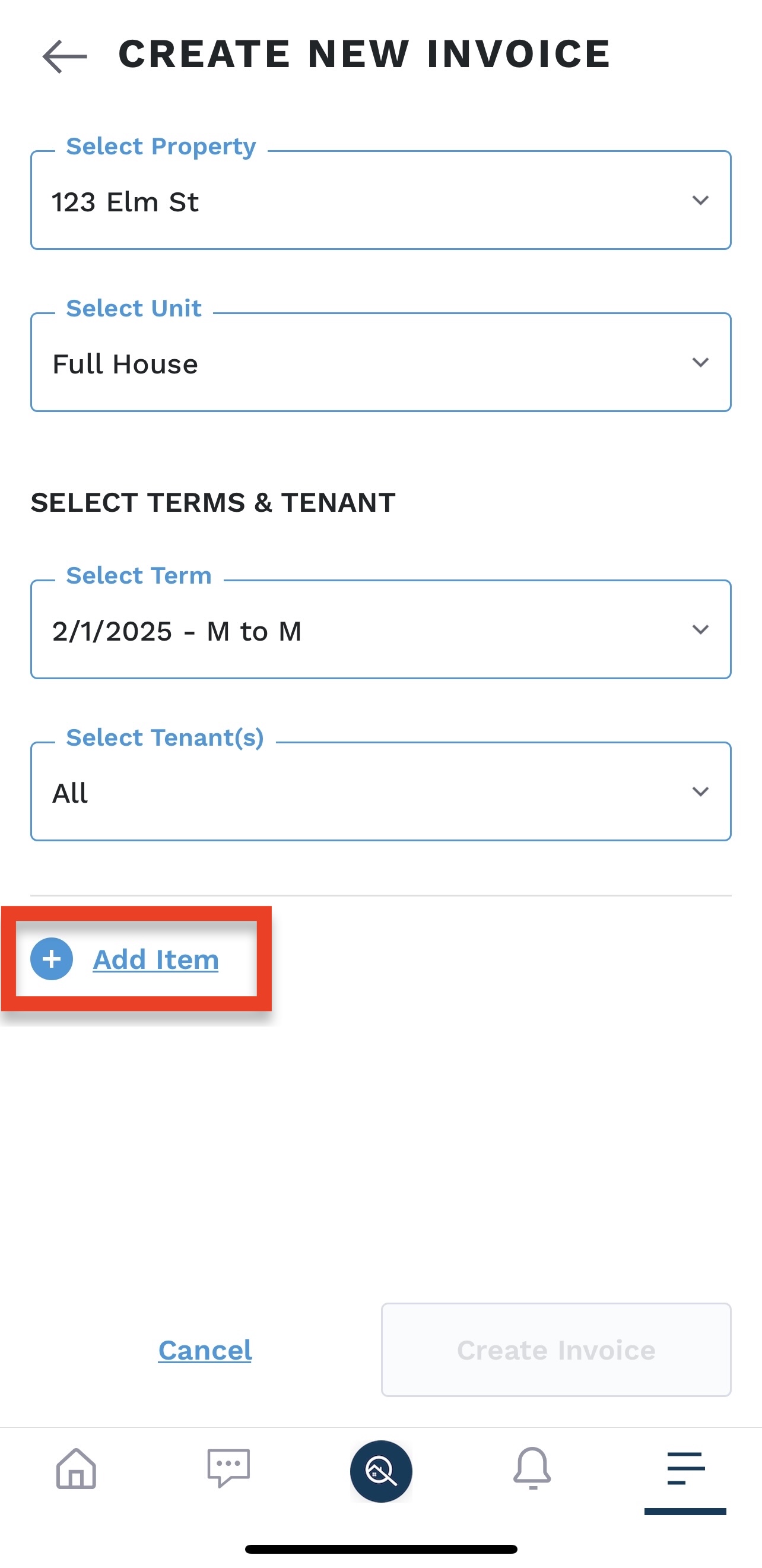
2. This will prompt you to the select the property, unit, term, and tenant. After selecting those options from the dropdown you will then click “add item.”
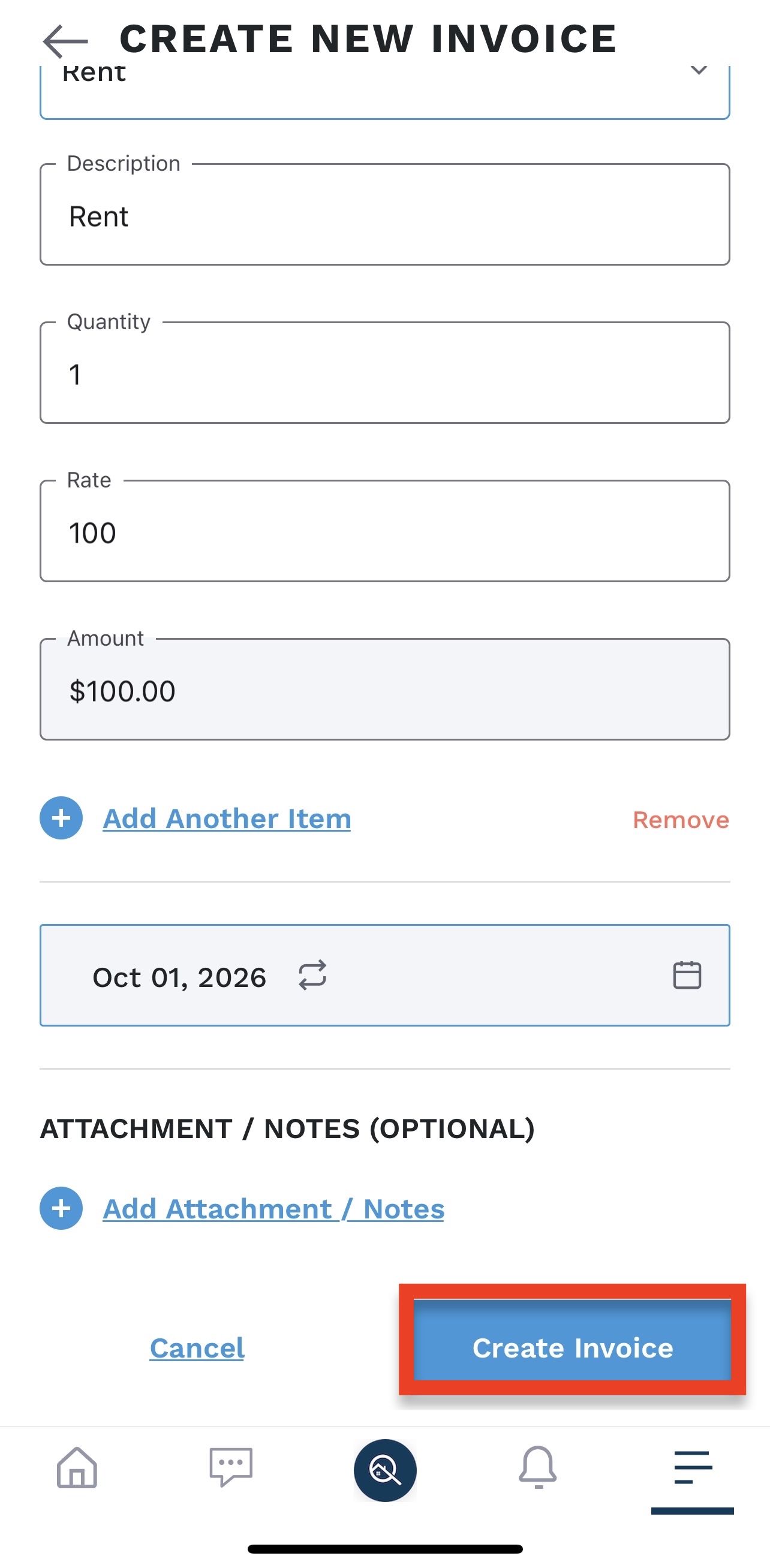
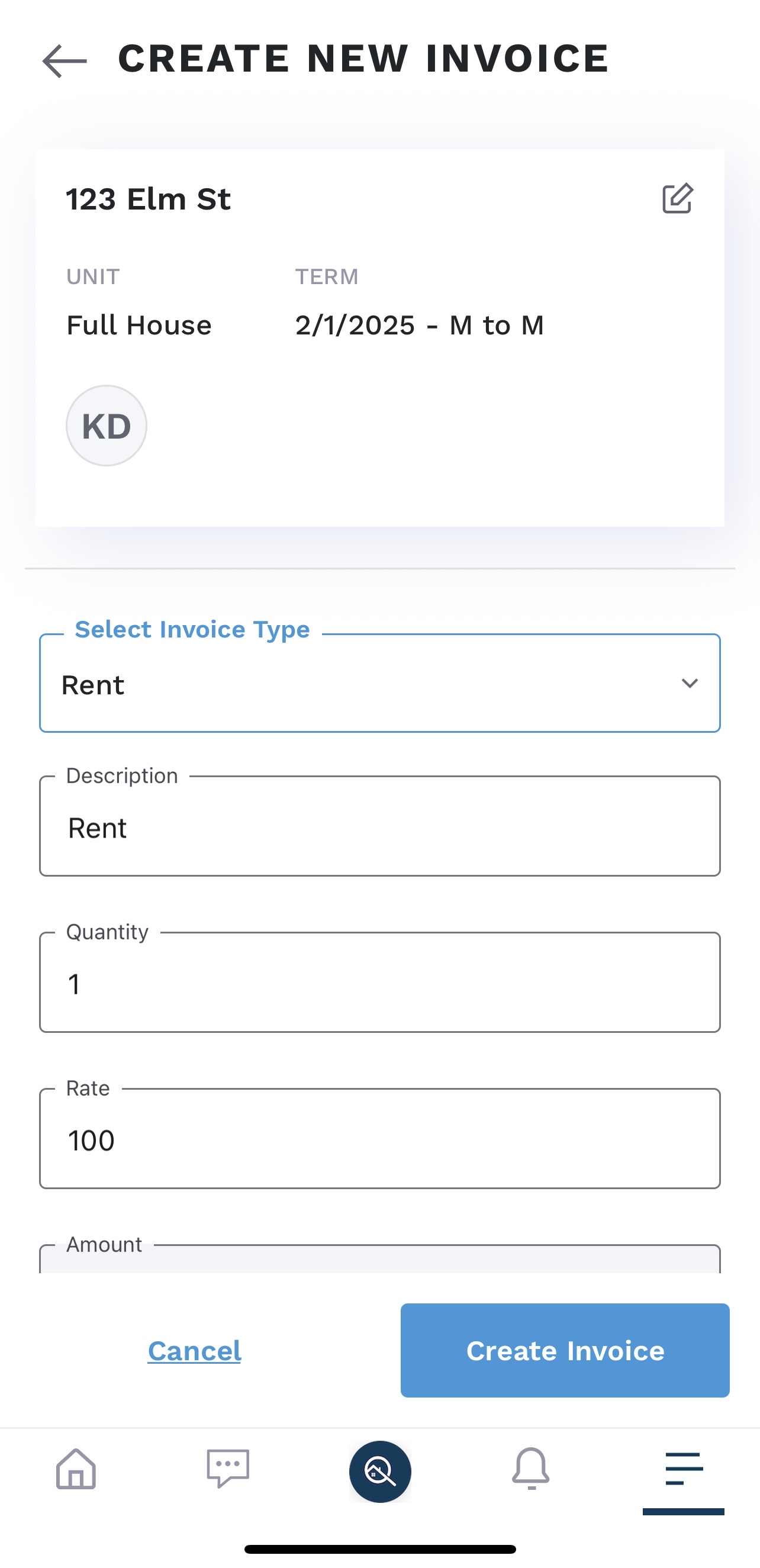
3. You will then select your invoice type and description, as well as typing in the quantity and rate.
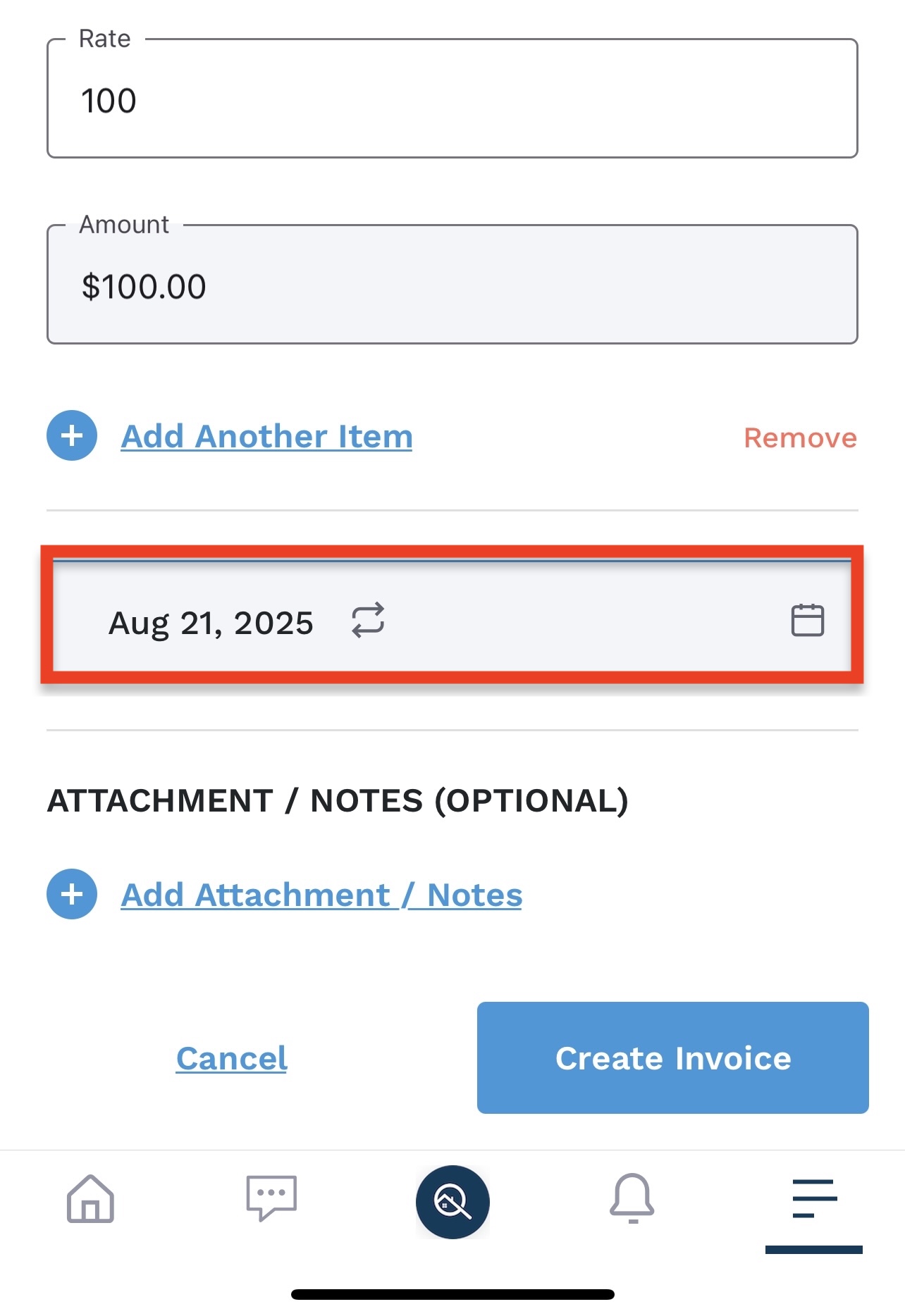
4. Select the date in which you want the invoice to be due by clicking the calendar option. That will then open up if you would like to make the invoice recurring or one time.
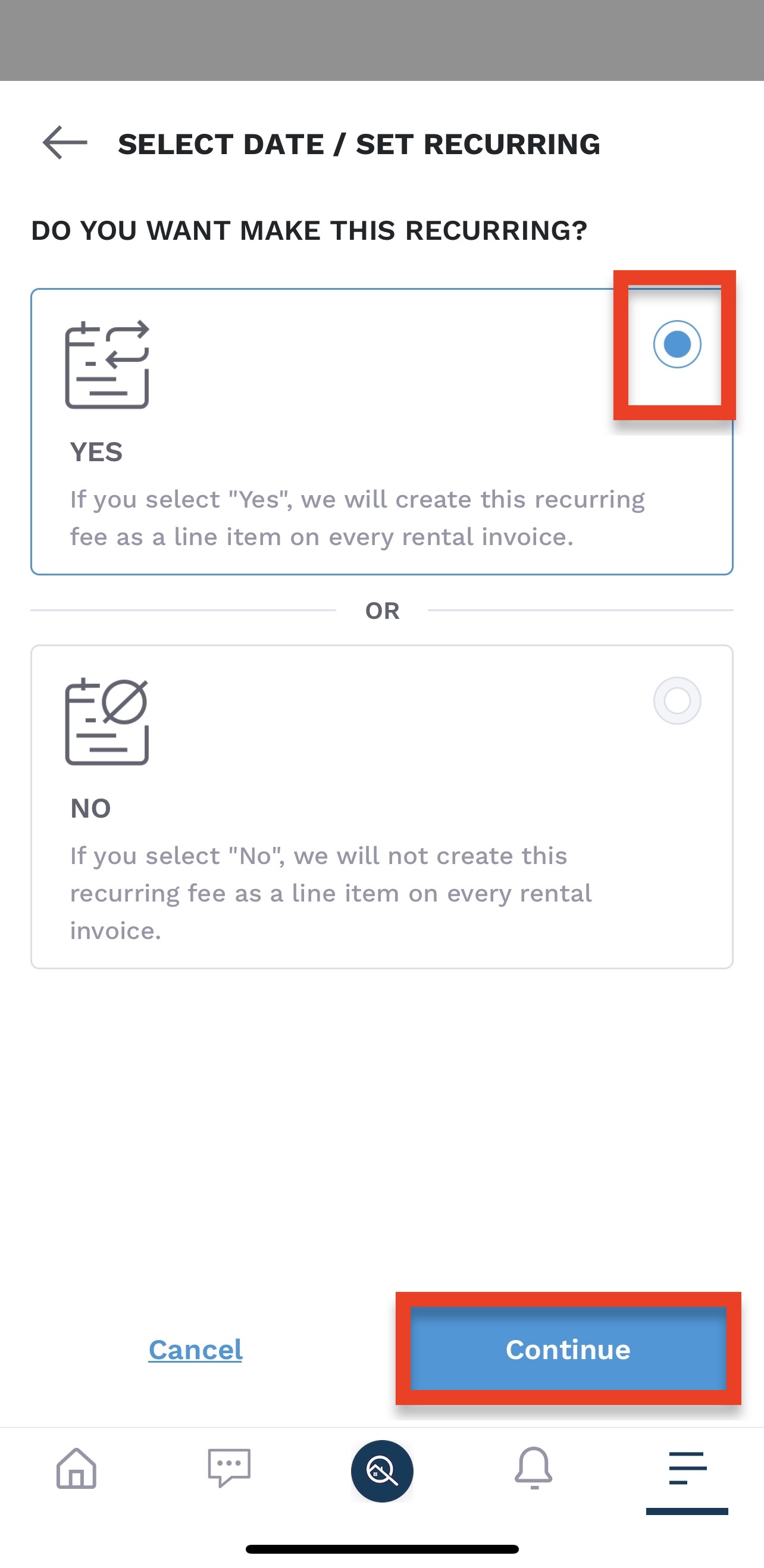
You will select the “yes” option and click continue.
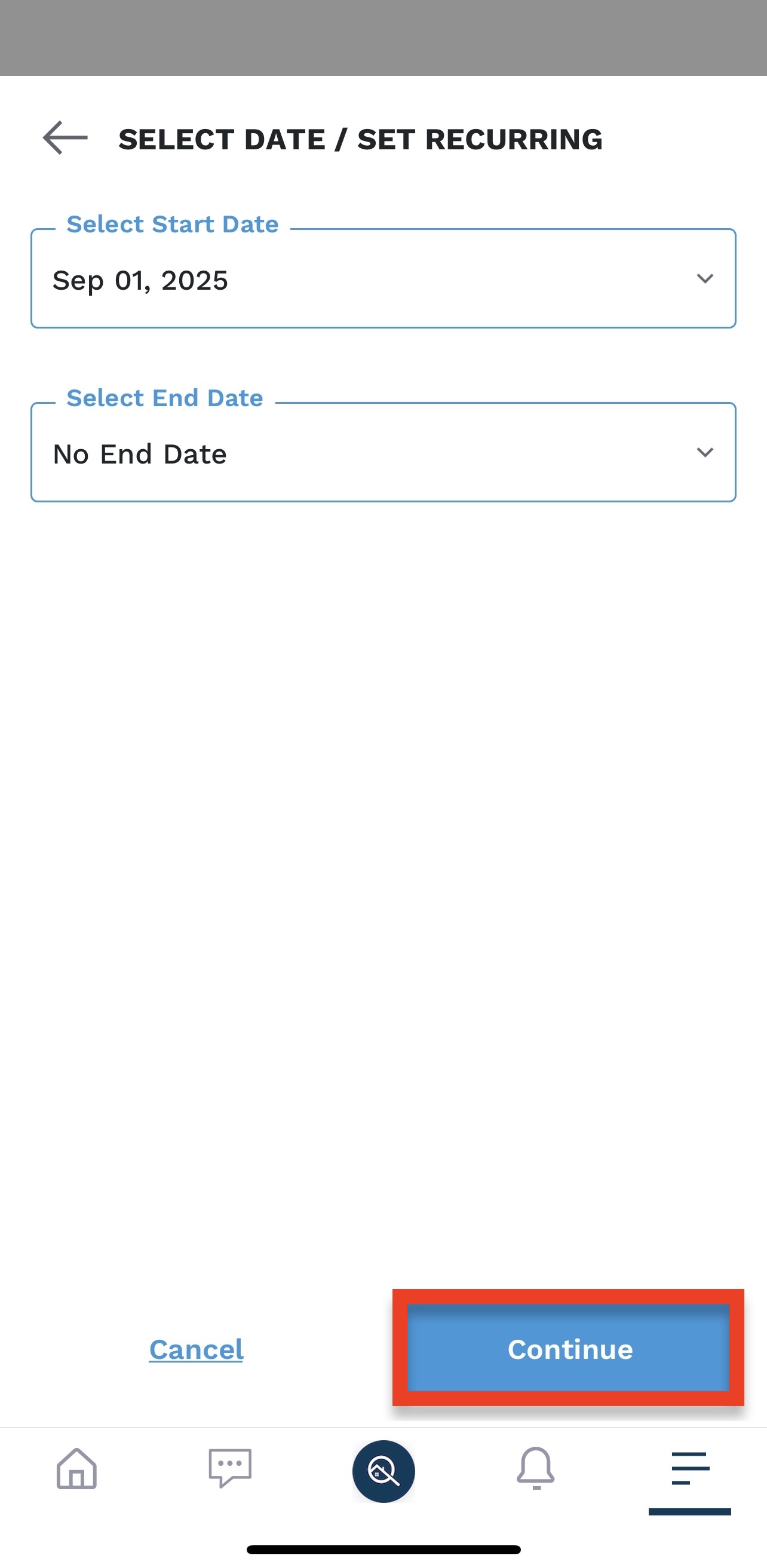
5. Select the date in which you want the first recurring invoice to be due, as well as the date you would like the last invoice to occur. If you do not want the invoice to have an end date, select “no end date.” Then click continue.
6. Once everything looks correct, you will click “create invoice.”