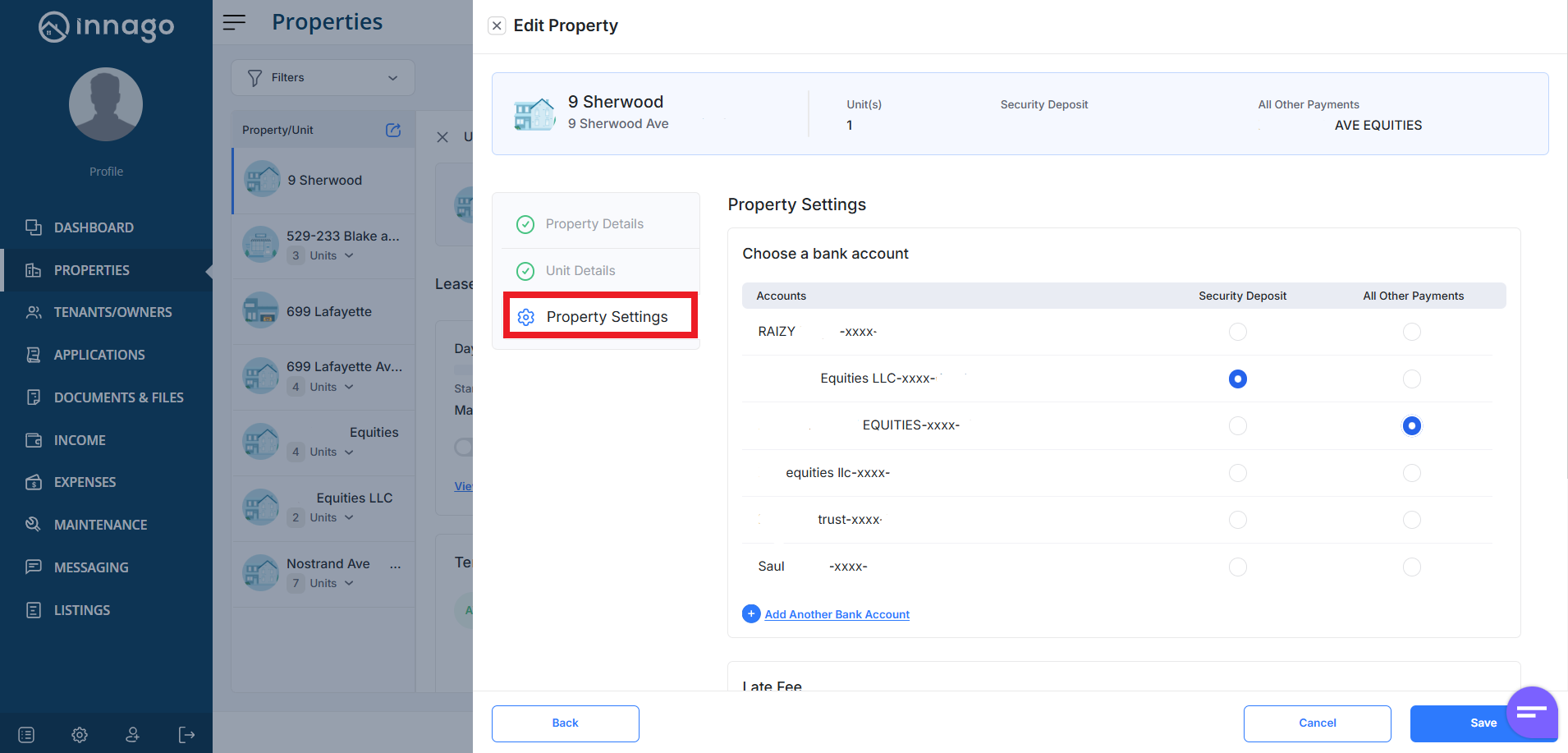
1. From the Innago menu on the left, click “Properties”.
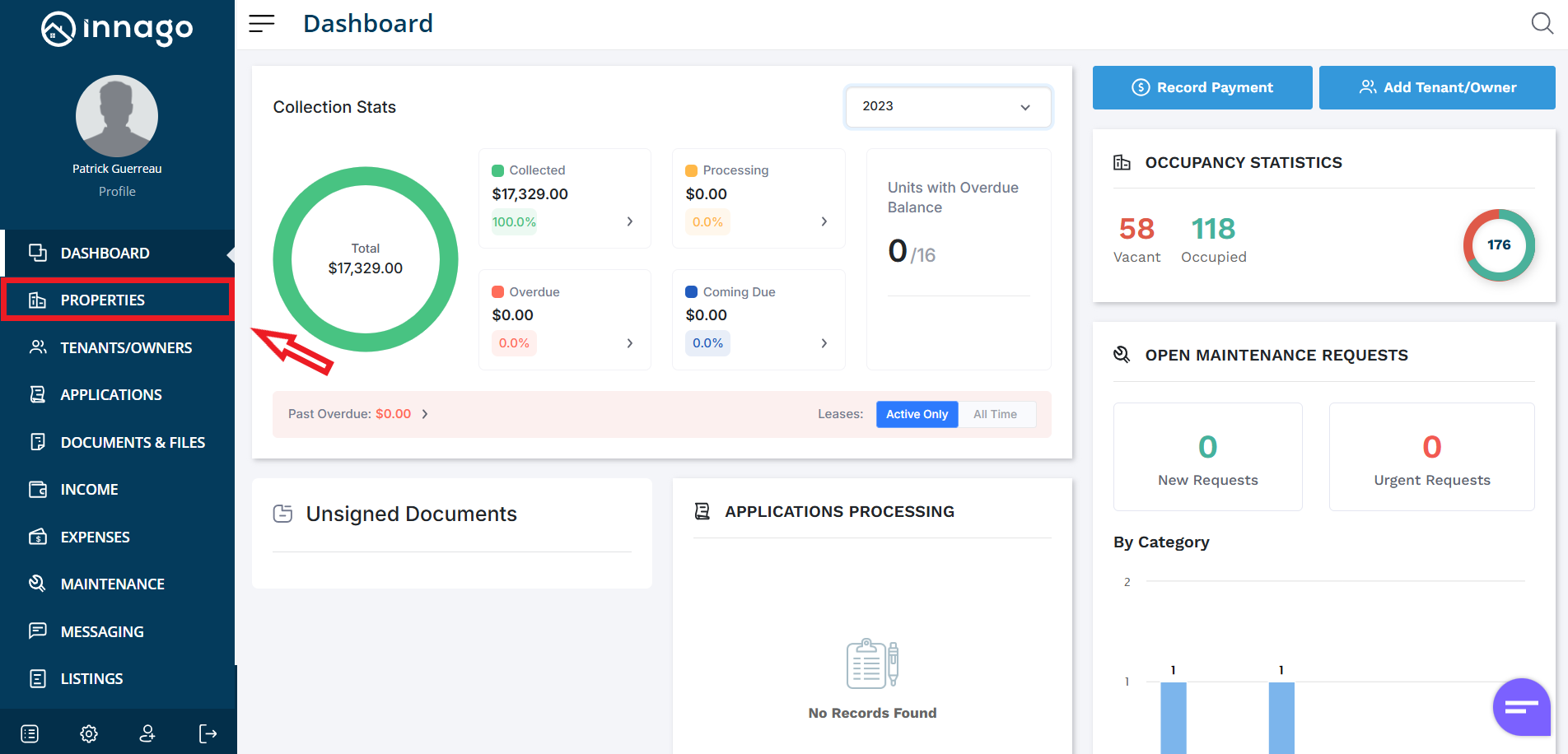
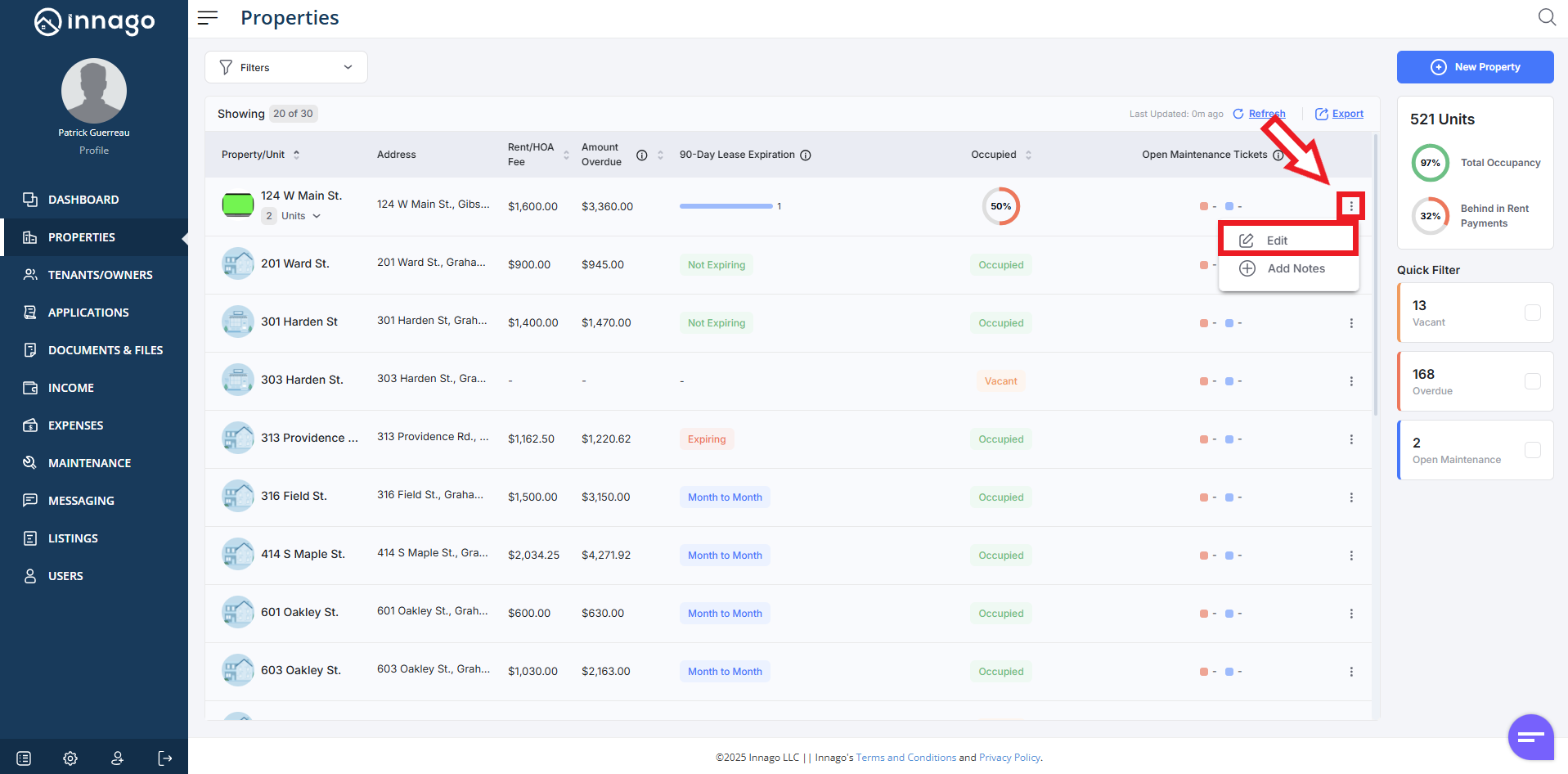
2. Click the set of dots next to the property you would like to edit. Click “Edit” from the action menu. Please note, you can also click “Edit” from the Unit Detail screen if you’ve already clicked on the property directly.
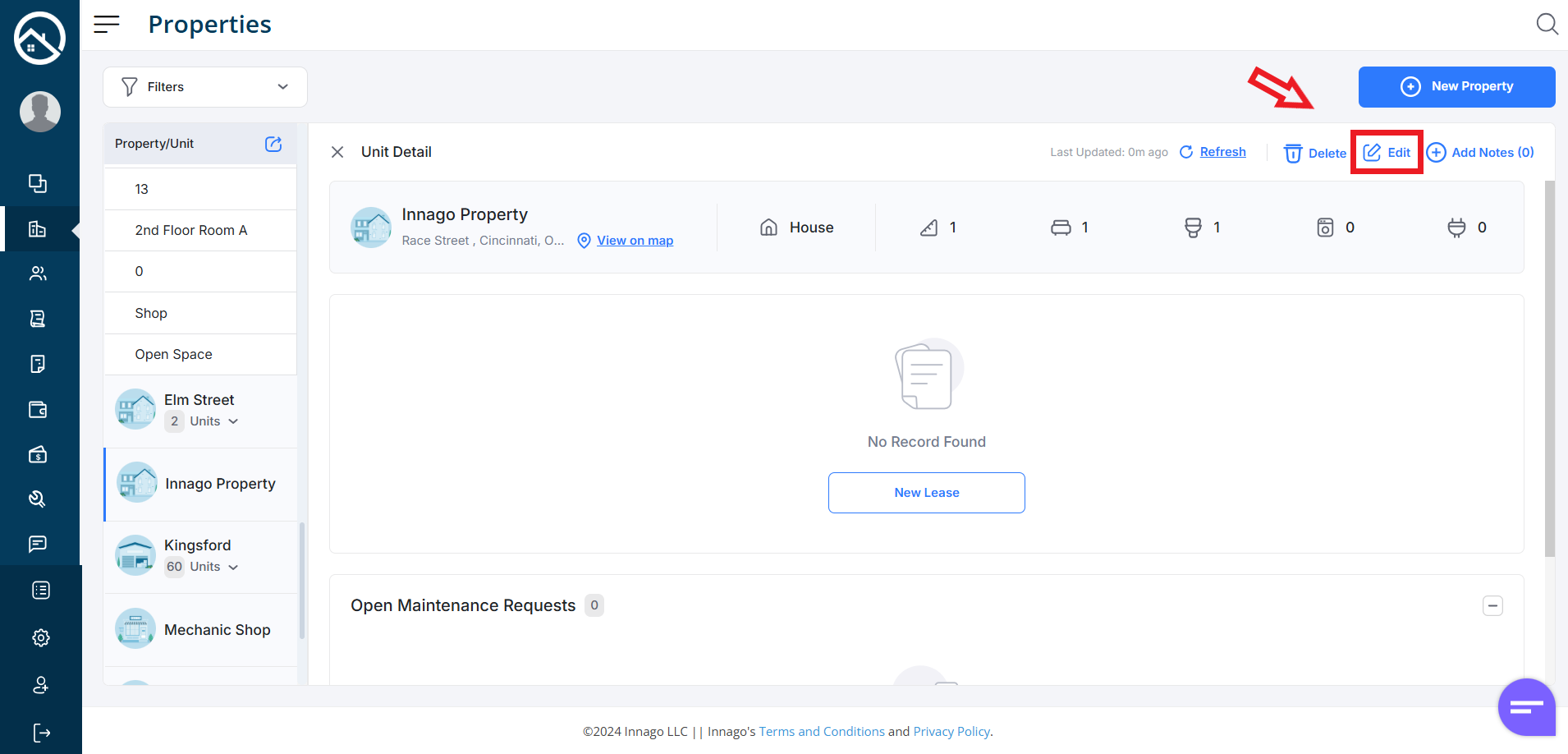
3. Click “Next” to proceed to Property Settings, where you can assign bank accounts.
Please note, you must make a selection for both Security Deposits and for All Other Payments, even if you are not planning to collect security deposits through Innago. If you need certain units to have their own specific assignments, you’ll just click Customize Per Unit in order to make those specifications. If you’re on the mobile app, you will have to tap on the bank account record on screen, then you will see the option to make assignments.
Once you’re finished with your selections, click “Save” to complete your updates.
*IMPORTANT NOTE* If you only have one bank account added to Innago so far, once you visit the screen below, that bank account will be automatically assigned whether you click “Save” or “Cancel”. The only way to prevent the lone bank account from being auto-assigned is to completely exit the browser tab.