
If you’ve already added a tenant’s lease terms to Innago (start date, end date, rent amount, etc.) and you want to change the due date for one specific invoice, you can very easily follow these steps! Please note, you can only update the due date of an invoice via web browser. You will not be able to edit the due date on the mobile app.
-
In Innago, navigate to your Income page from your main menu.
-
From the Income page, you’ll need to use your Filters to find the invoice you need to edit. Please note, by default, the date range will be limited to the current month.
-
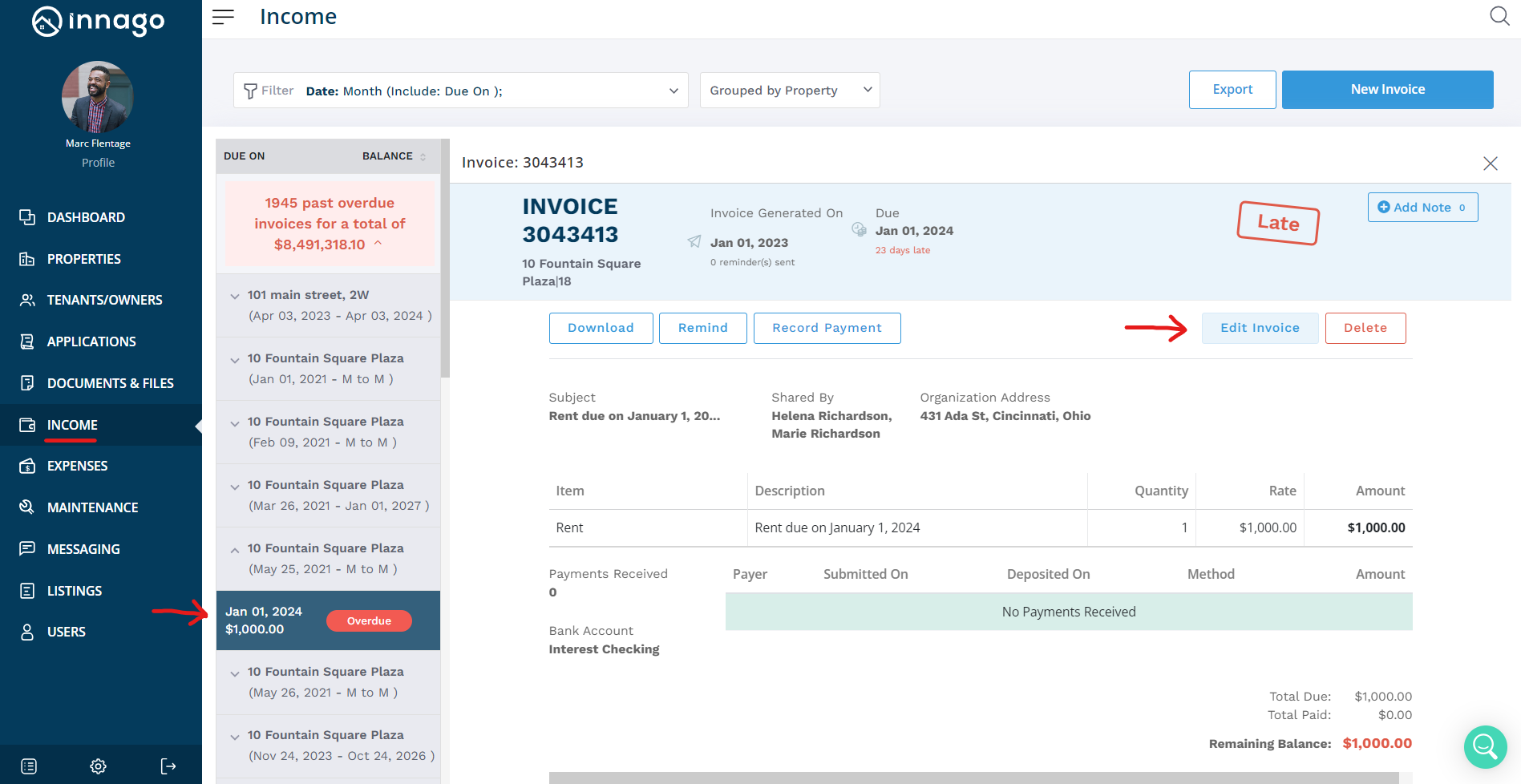
Results will be grouped by property by default, so you’ll want to click or tap on the property/unit that is associated with the invoice. The result will expand and list any invoices that fit your filter criteria. When you find the invoice you’re looking to update, click/tap on it.
-
On the invoice, you should see the option on the right hand side to click “Edit Invoice” if using a web browser. The option to edit the due date is not available on the mobile app.
-
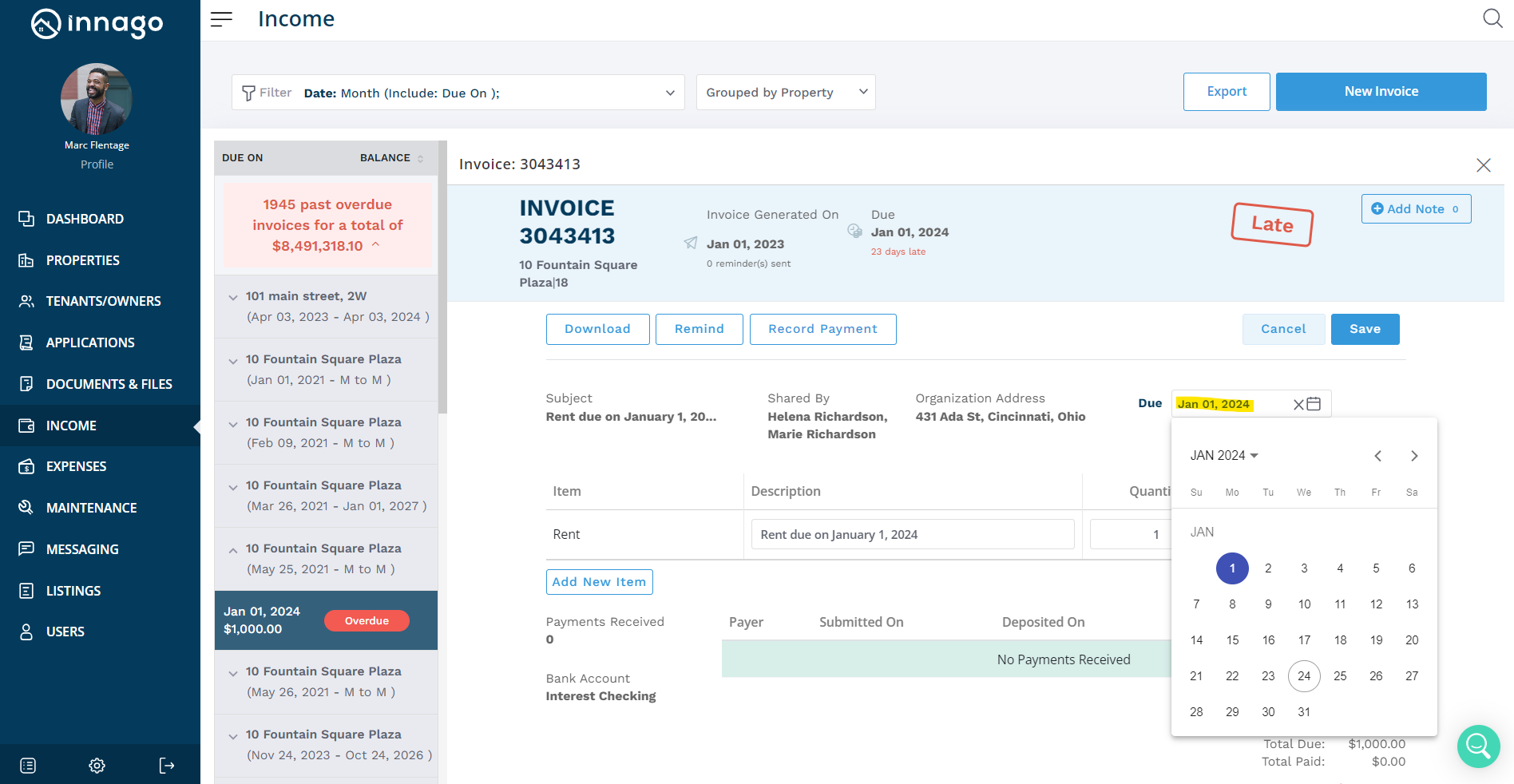
When you select that, the Due Date field will become selectable
-
Simply type in the due date you want to change the invoice to, or select the calendar icon to select a date from a calendar!
-
Then, make sure you click Save on the invoice to finalize your changes
Then, you’re all set! This invoice will now have a different due date, and the changes will also apply to the tenant’s dashboard instantly.