
Add a Lease Term
In PlacePay, to add a new lease, you would have selected the property from the left-hand side of your dashboard. You’d tap the unit number you wish to add a lease to and select “New Lease” from the drop-down.
In Innago, you’ll similarly click an “Add Tenant” or “New Lease” button to start the process as shown below:
1. From your Dashboard, click “Add Tenants” in the upper-right-hand corner, or click “Leases and Files”. If you clicked “Leases and Files”, click “New Lease” on the following screen.
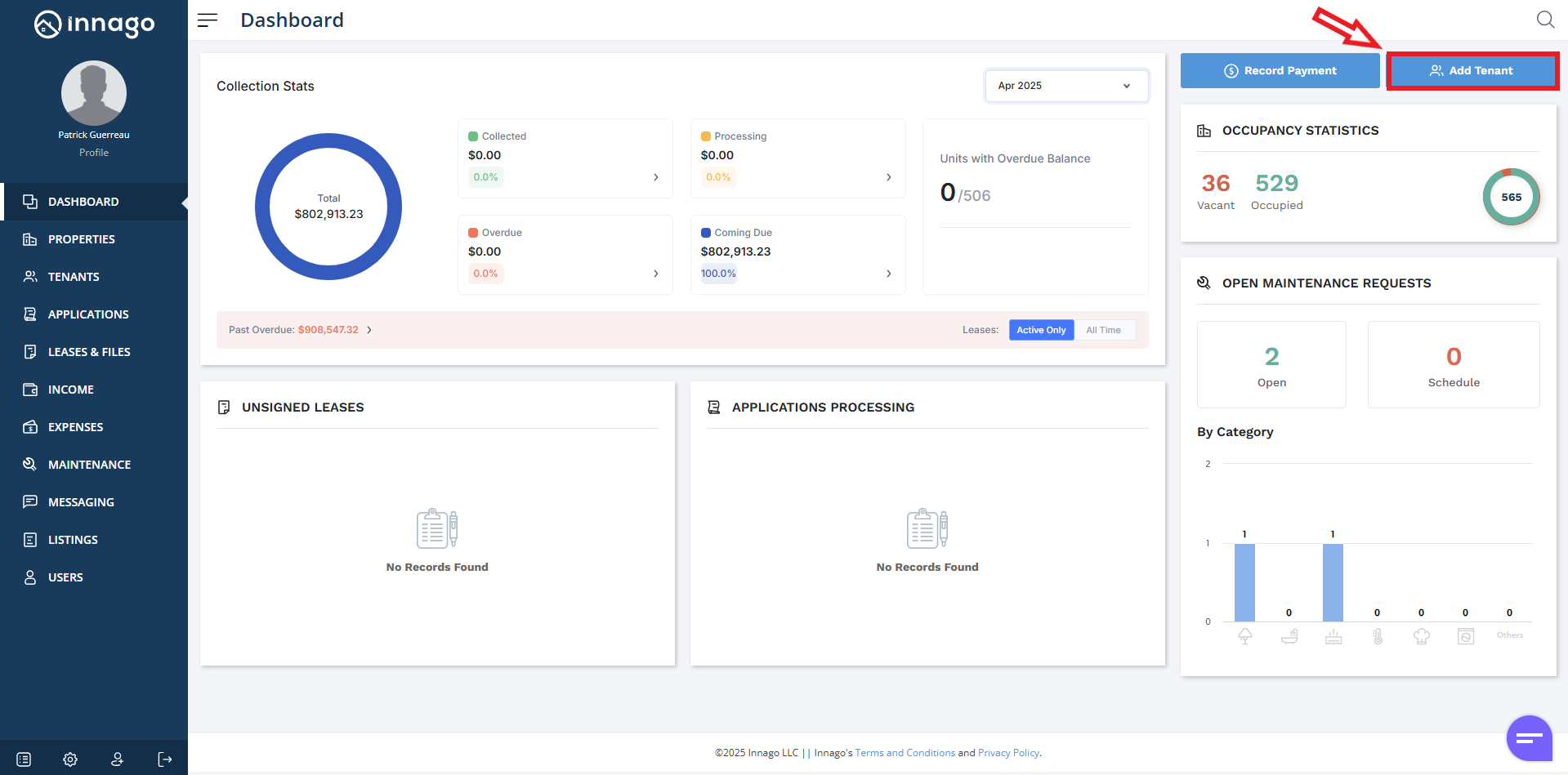
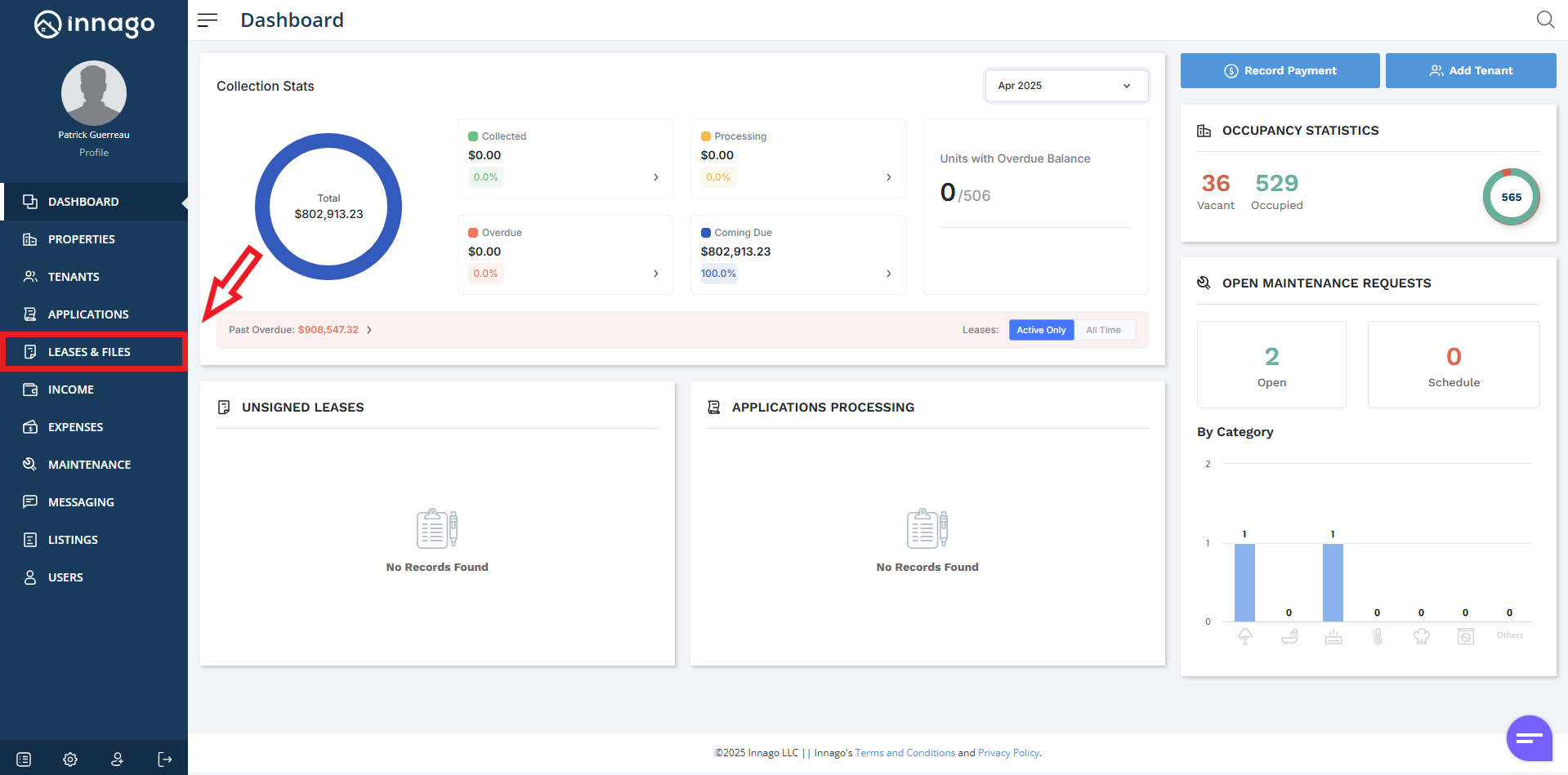
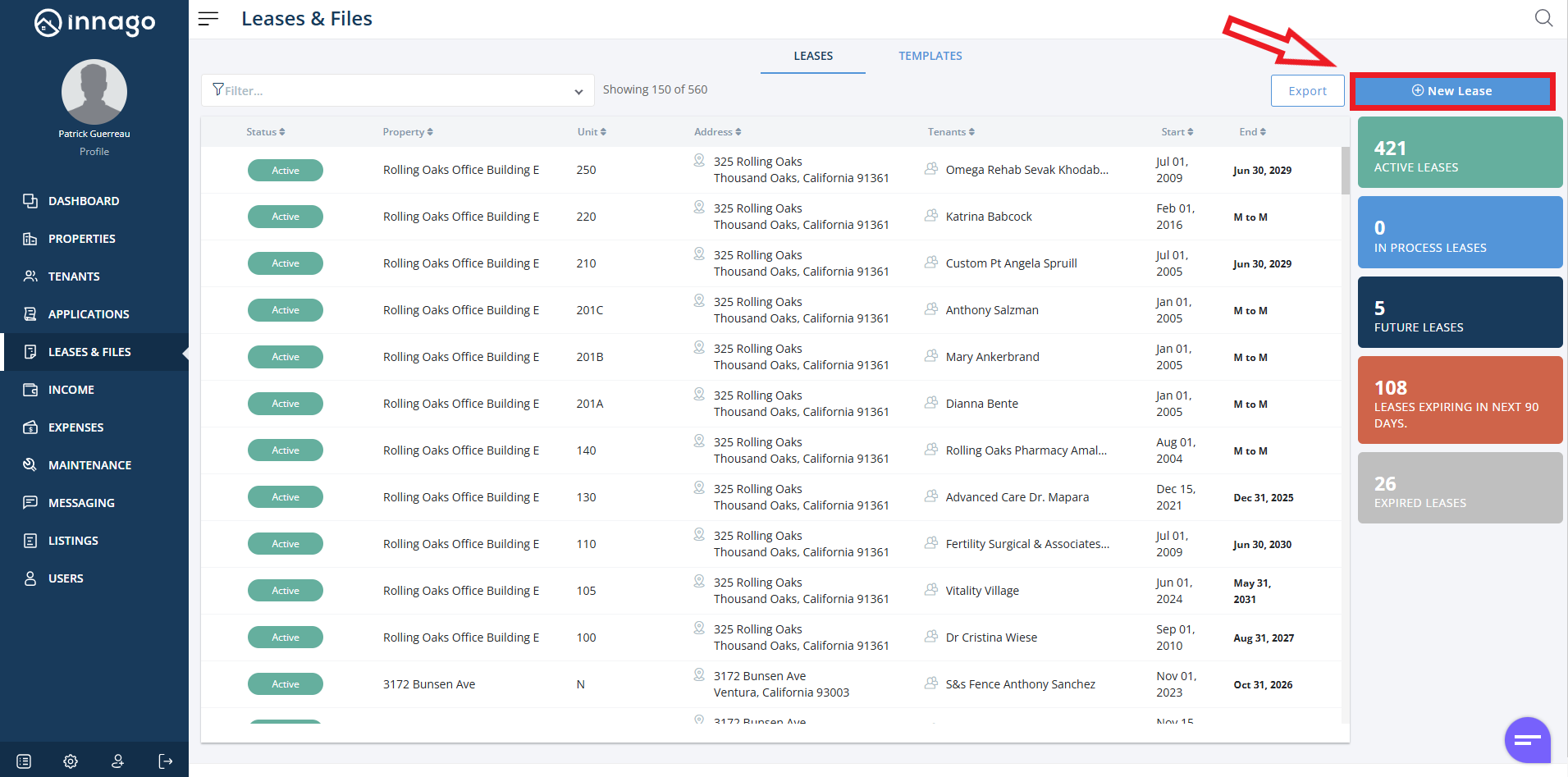
2. Select the property to which you’d like to add tenants and click the “Next” button. If your property has not been added to Innago yet, click the “New Property” button to add it now.
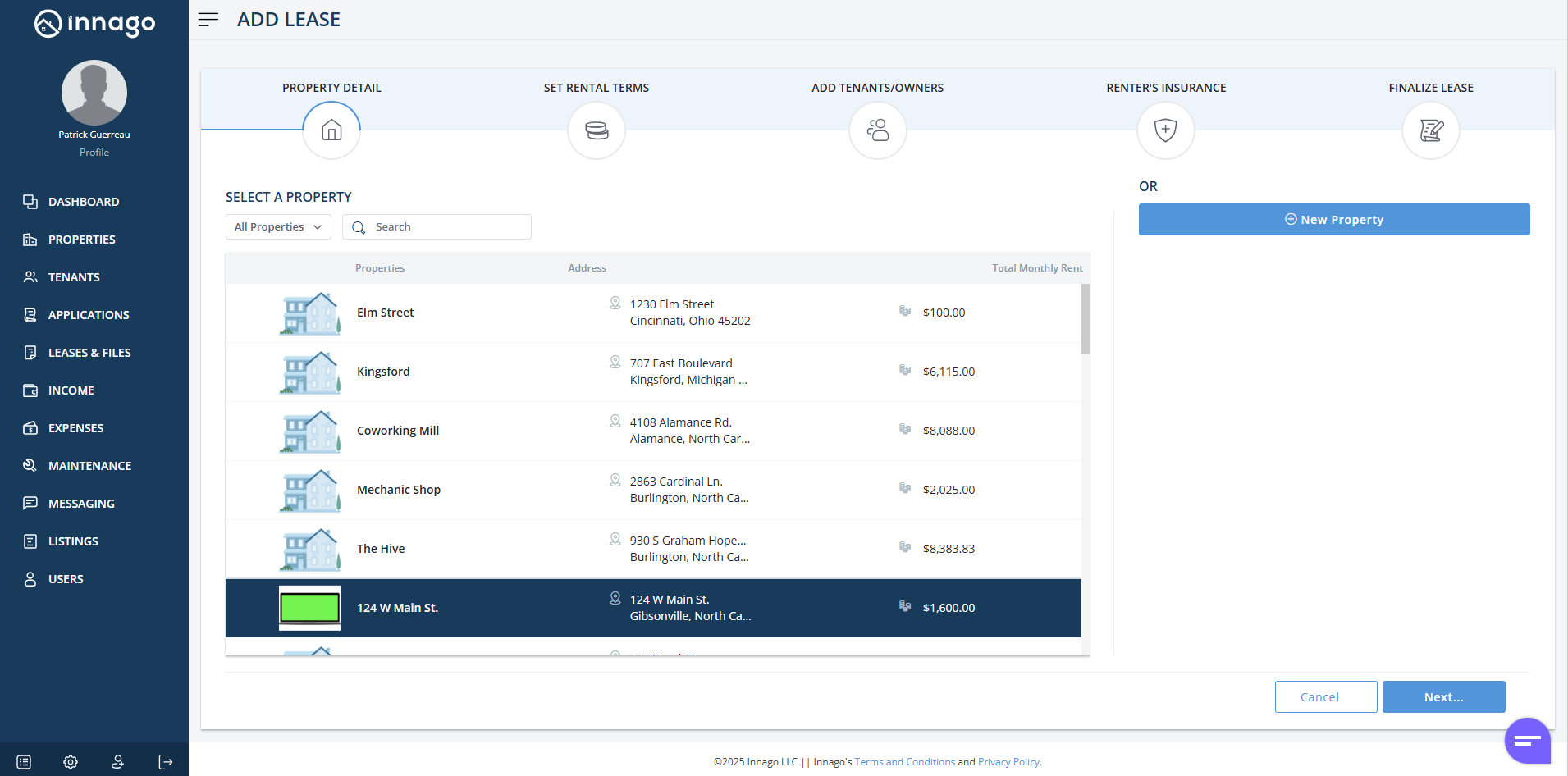
There are several more steps from here to finalize creating your lease. Please note, when you finalize your lease, invoices will be automatically generated based on the lease terms you enter. You can find more information about setting up your lease term and all the instructions you’ll need by clicking here.
Set up Recurring Charges
Some items, such as pet fees or water charges, need to be paid by your tenants on a recurring basis. In PlacePay, you would have the option to set up recurring charges when creating a new lease term by following the instructions shown below:
1. From the Innago menu on the left, click “Leases and Files”.

2. Select the lease term you would like to edit by clicking anywhere within the row that includes its details:

3. Near the top-right corner of the screen, click the set of vertical dots as shown below to access the action menu. Click “Edit Lease”.

4. Click “Next” to access your existing recurring fees.

5. At the bottom of the screen that appears, you’ll see a list of any recurring invoices associated with this lease term. Click either “Edit” or “Delete” to update an existing fee. Keep in mind, changes to invoices will only affect future unpaid invoices. Click “Save” if you’re finished making updates.
