
Using PlacePay, each new property would likely require a separate processing bank account (unless you collect for multiple locations under the same name and bank account). Setting up these new accounts would have been done through your PlacePay Dashboard, with all supporting documentation being sent to the Implementation Team.
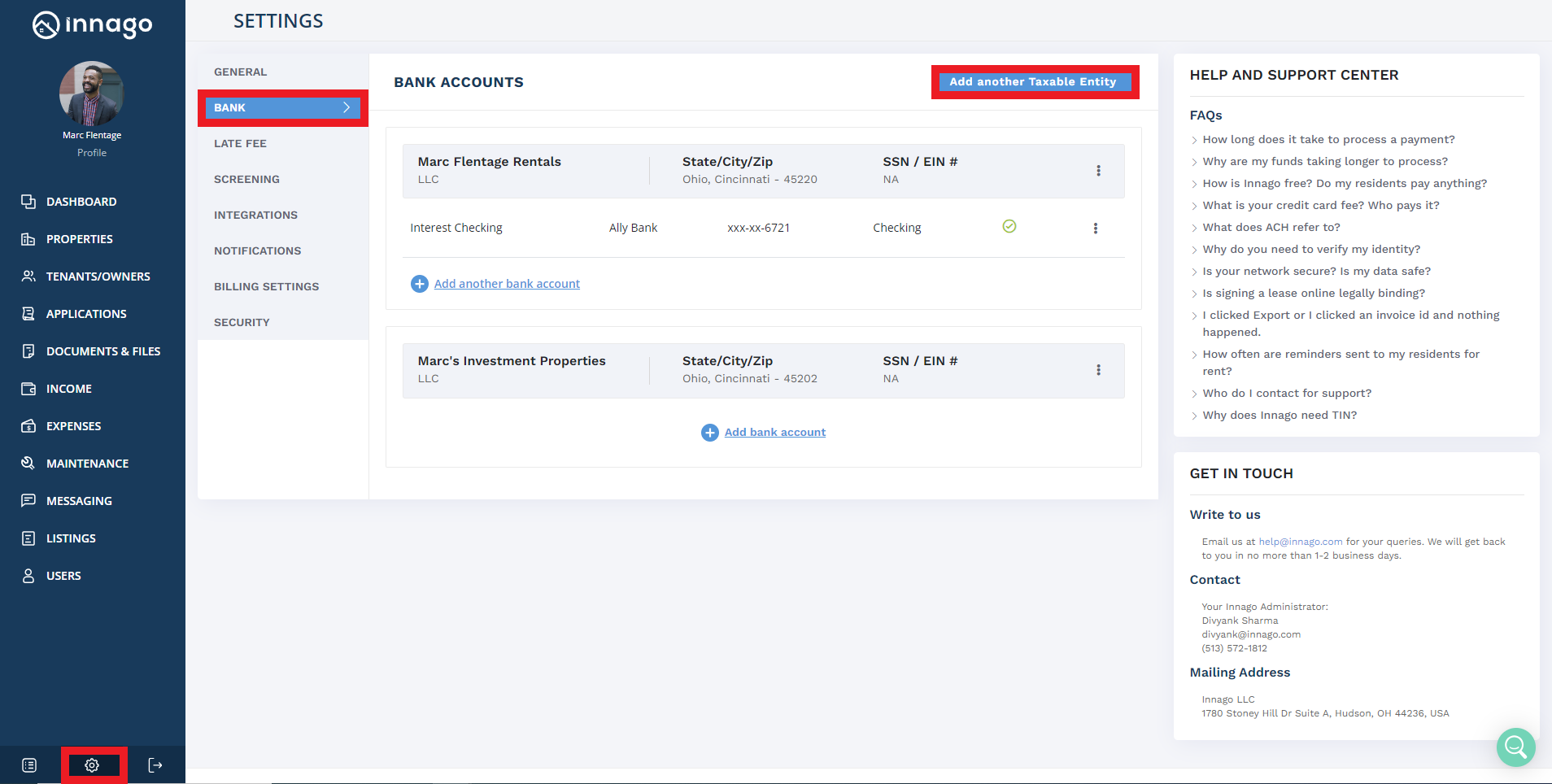
In Innago, you’ll be able to add multiple bank accounts and taxable entities as well. You will not have to submit any supporting documentation to do this. You’ll just follow the steps below:
Whenever you add a bank account to Innago, it must be associated with a taxable business entity. That entity could be an LLC, corporation, partnership or sole proprietorship. You’ll also need to provide a taxpayer identification number (TIN) for 1099-K reporting purposes. For more information about 1099-K tax reporting, please click here.
Adding a Taxable Entity:
1. From the Innago menu on the left, click Settings (the gear icon).
2. From the Settings menu, select Bank.
3. Click either “Add Bank Account” if you haven’t previously added a bank account, or click the blue bar that reads “Add another Taxable Entity”.
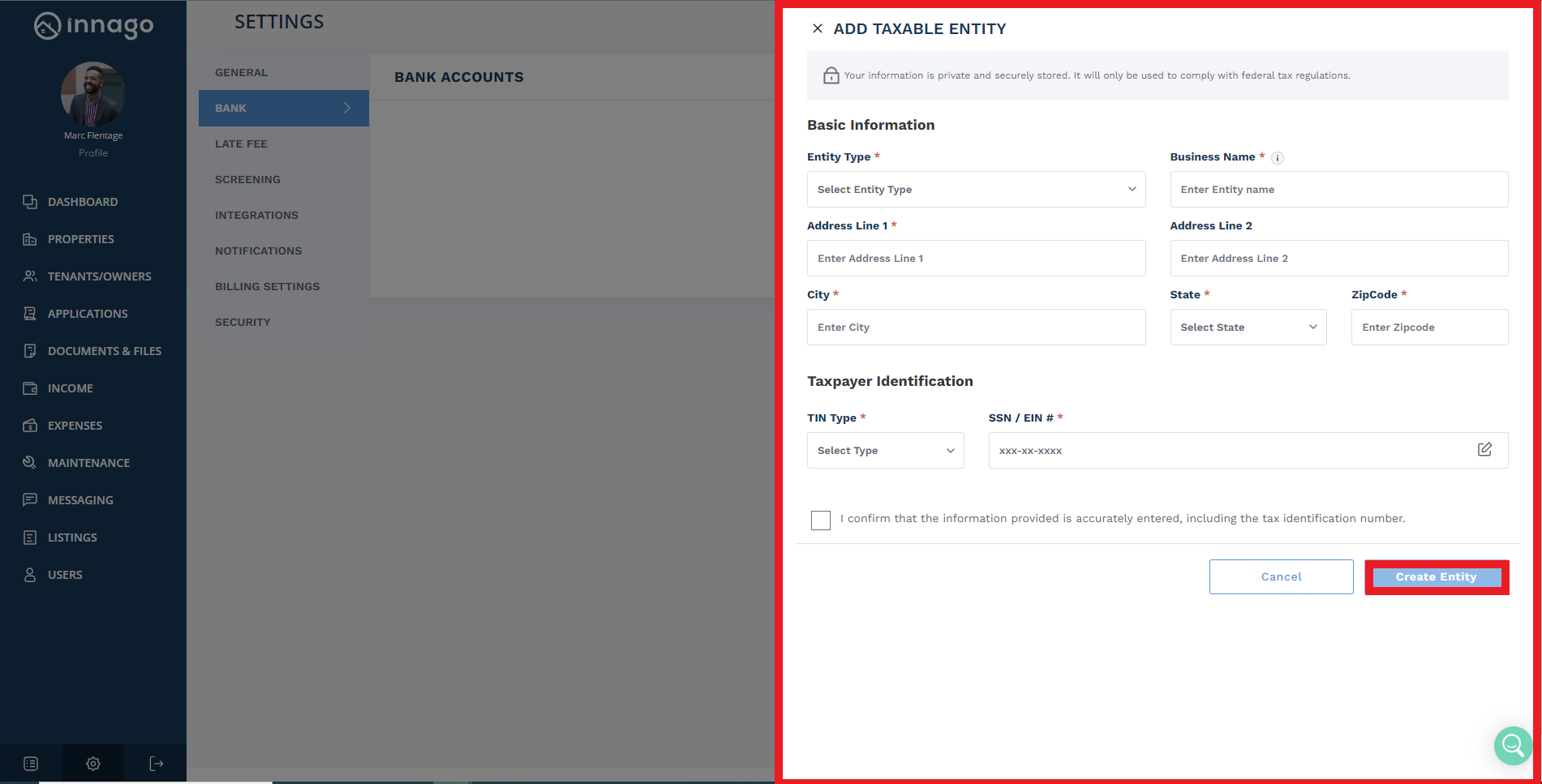
4. Type in your business entity’s name, address, entity type, and TIN information.
5. Click “Create Entity” to save your changes.
Once complete, you can then add a bank account to that business entity. You can follow the same steps to create multiple business entities as needed.
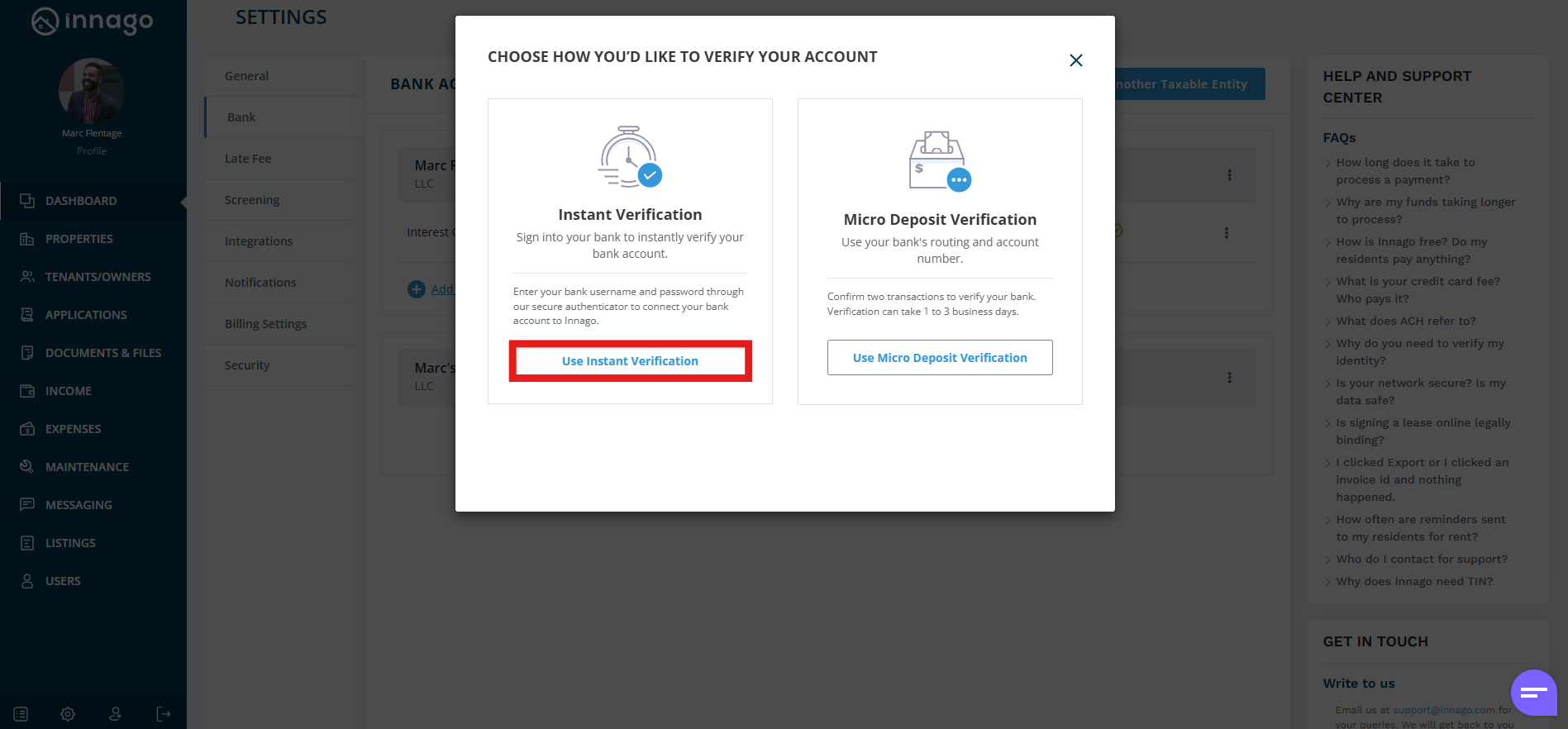
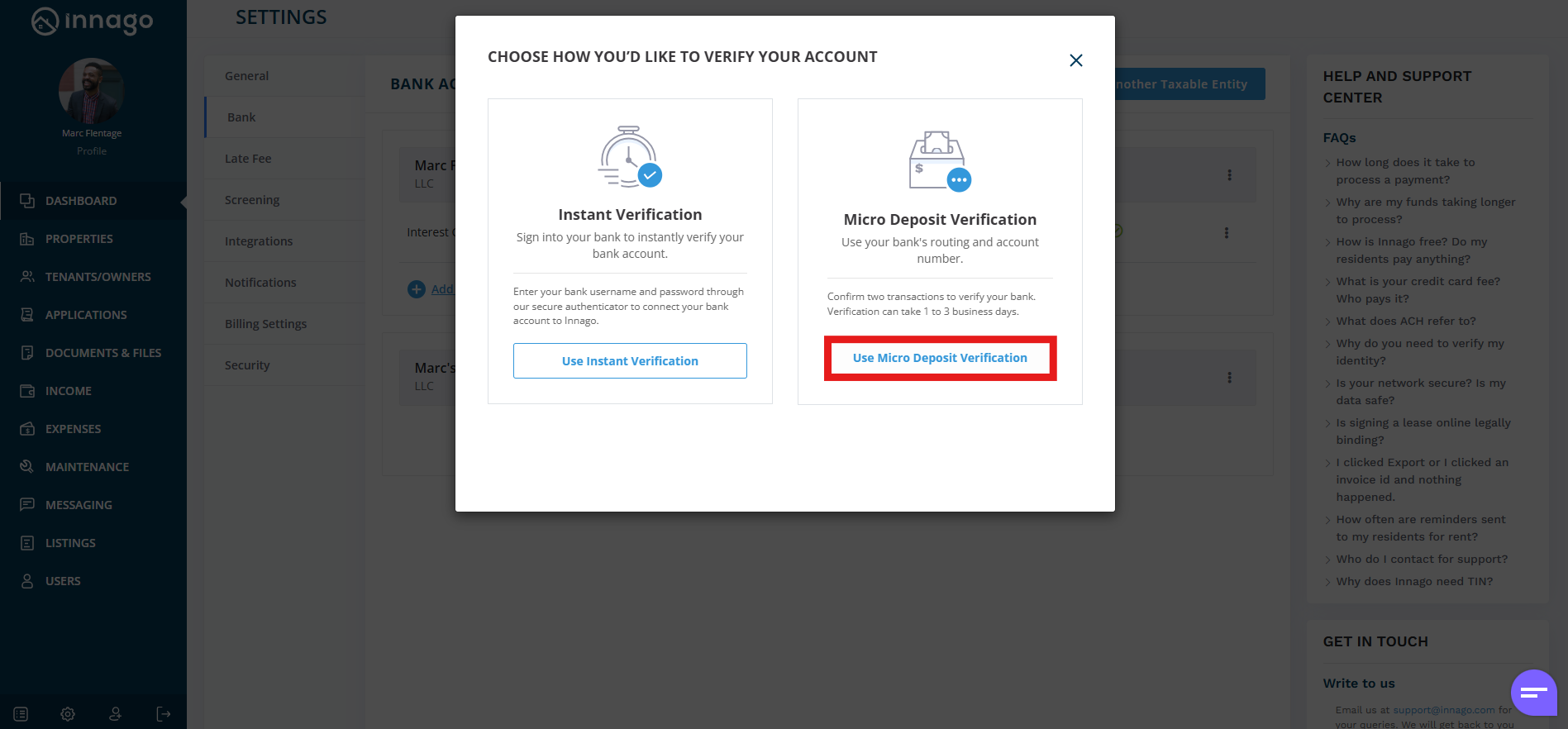
After adding an entity, there are two methods you can choose from in order to verify your bank account: instant verification and micro-deposits.
Instant Verification
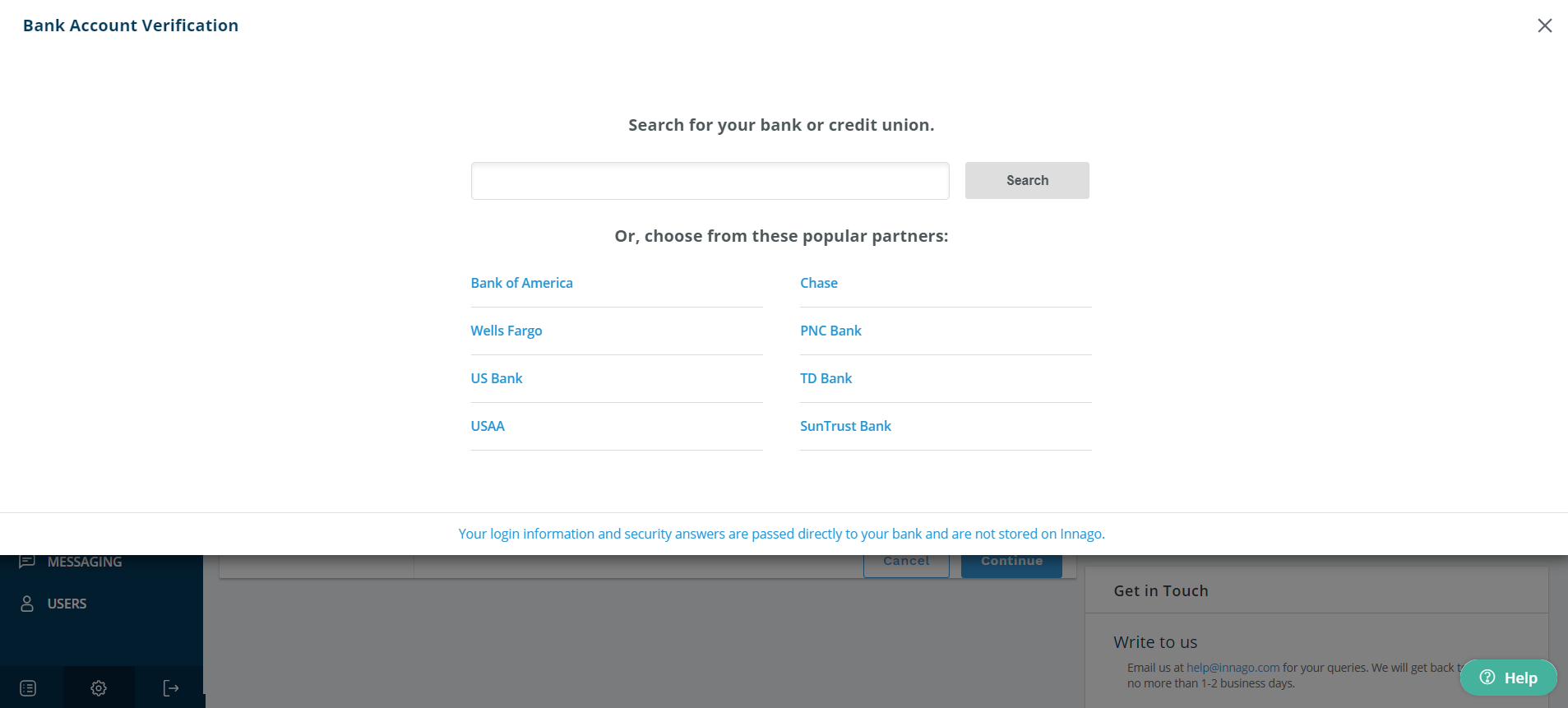
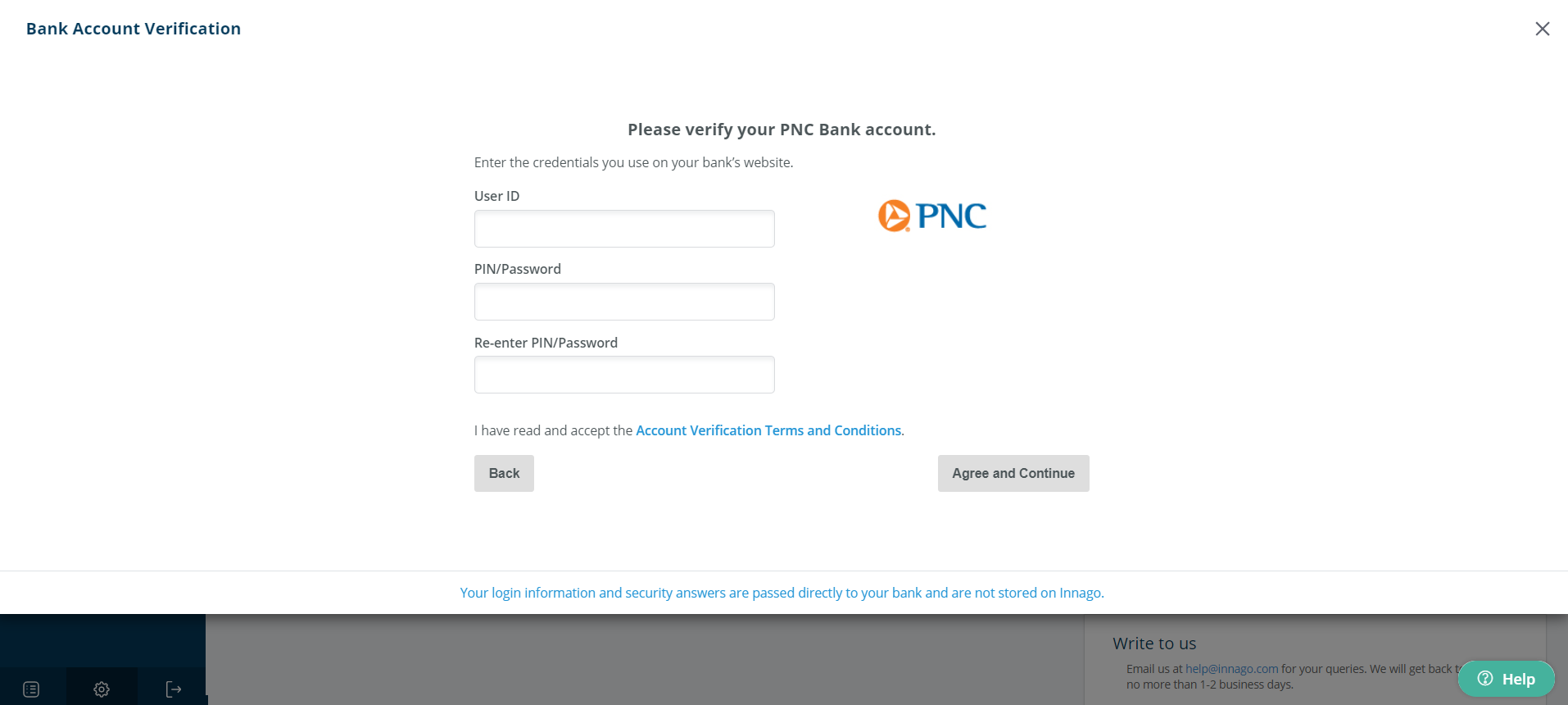
– More than 80% of financial institutions offer you the ability to instantly verify your bank account. To do so, you’ll enter in your username, password, and any authentication requirements your financial institution has set.
– Note: we cannot see or access this information at any time. Once verified, your bank simply passes us your account and routing number. It’s simple, secure, and fast.
Micro-Deposits
– If your bank does not offer the ability to instantly verify your account or if you’d prefer not to do so, you can verify using micro-deposits.
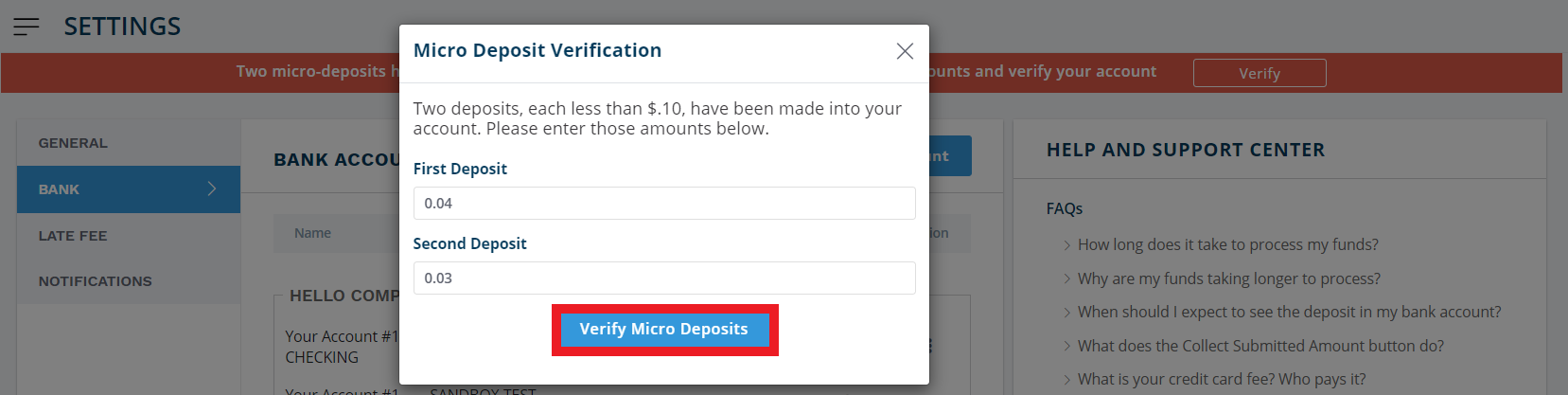
– You will enter in your account and routing numbers. Two deposits, each less than ten cents will be sent to your account.
– If the micro-deposit service is initiated on a business day before 5PM est, the deposits will arrive the following morning by 10AM est. Otherwise, add an additional business day (e.g. if you start the process on Saturday, the deposits will arrive by Tuesday).

Once verified, your bank account can be assigned to properties, and you can begin collecting rent! Please note, you MUST assign a bank account to a property before any funds can be sent to that bank account. See the following article here for more details and instructions.