Using PlacePay, to edit rent amounts of how much you owe or how much a roommate owes, you would have previously followed the steps below.
Desktop View:
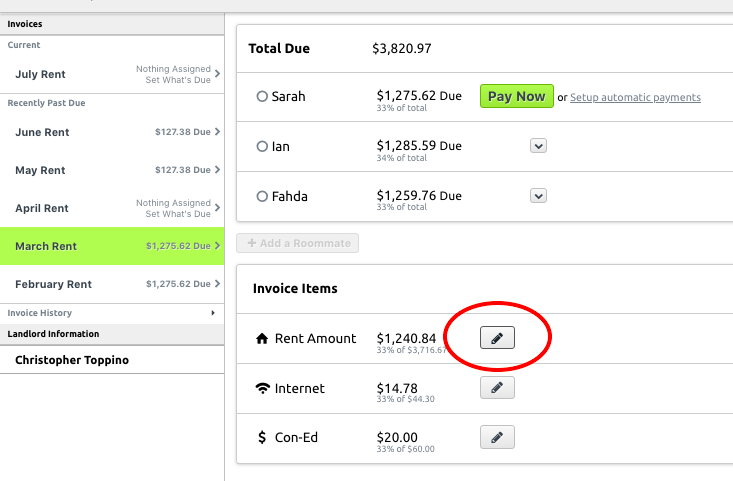
- Click on the ‘pencil icon’ button next to the line item you wish to edit.
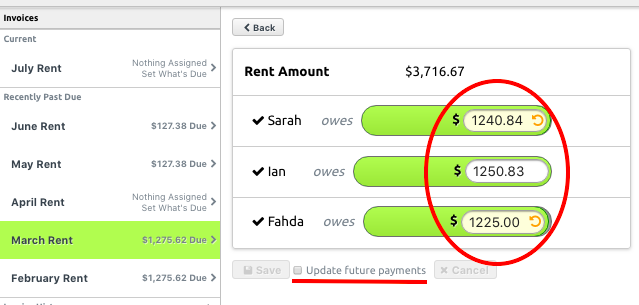
- From here you can edit the dollar amount in the field next to your name or your roommate’s name.
- If you want to update all future payment amounts be sure to select “Update Future Payments” before pressing “Save”
- Now you can go back to the current month’s invoice and you will see the revised total listed. When you then press “Pay Now” it will show you that new total as the amount to pay.
Tip: Clicking the rounded circular back arrow next to each dollar amount reverts the amount back to what you had previously.
Mobile View:
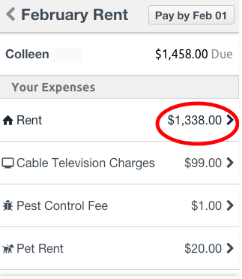
Instead of seeing multiple invoices you will just see one, with the line items listed below. As with the desktop view, just tap the invoice to view the roommate split and make changes to the amounts.
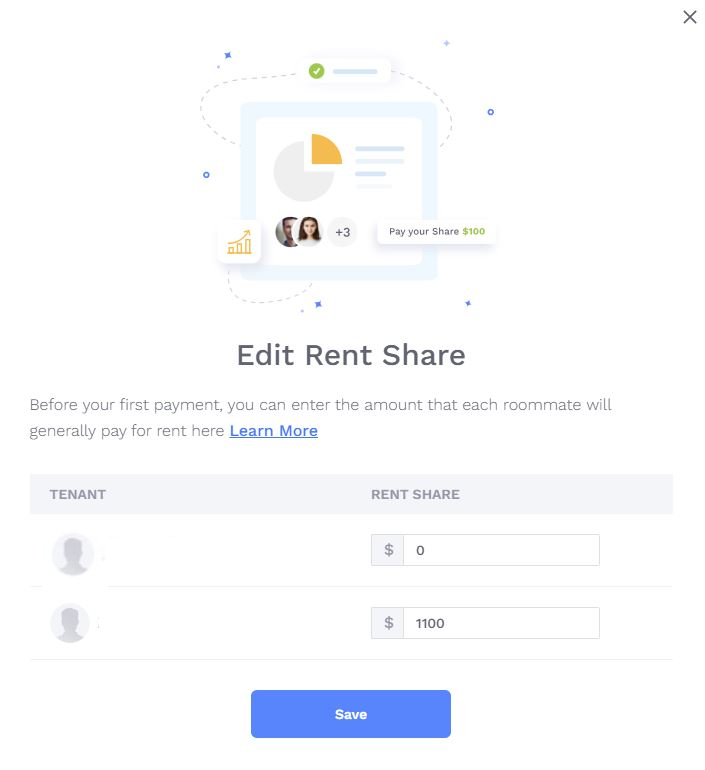
Rental Share/Split in Innago
Now that you’re using Innago, your landlord/property manager will set your initial rental share between you and any other tenants on the lease term. Usually they will use the system default, an even split between however many tenants are entered on the lease. For example, if you’re on a lease with one other tenant, the system will default to an even, 50/50 split.
If you need to change the rental split so that your “Suggested” payment amount appears differently, you can easily adjust this from within your account. You’ll just go to Leases & Files from your main menu, then click “Edit Preferred Rental Split”:
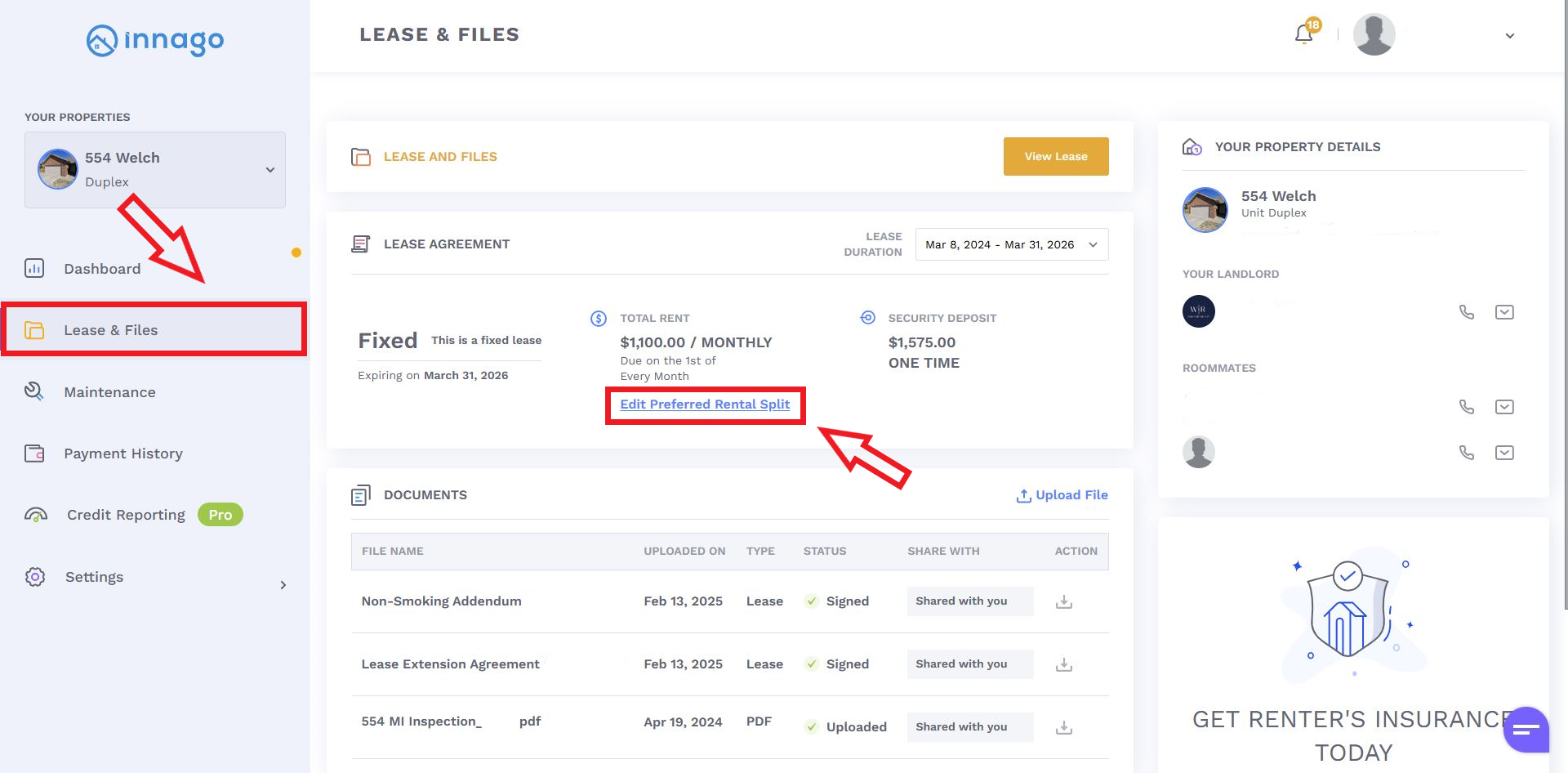
After clicking “Edit Preferred Rental Split”, you’ll be able to make adjustments and save them. Please note, unlike in PlacePay, you can only make this adjustment to the base rent. If your landlord has added any additional fees, such as utilites, parking etc., those will not be reflected in the total amount here. The adjustments you make here will have to equal to the total base rent, and can’t exceed that amount.