
1. In Innago, navigate to your Income page from your main menu.
2. On the Income page, you’ll need to use your Filters to find the invoice you need to edit. Please note, by default, the date range will be limited to the current month. The mobile app will present you with different “status filter tiles” that you can tap on when you first vist the Income page, but you can also use the direct filter tool as well.
3. Results will be grouped by property by default, so you’ll want to click or tap on the property/unit that is associated with the invoice. The result will expand and list any invoices that fit your filter criteria. When you find the invoice you’re looking to update, click/tap on it.
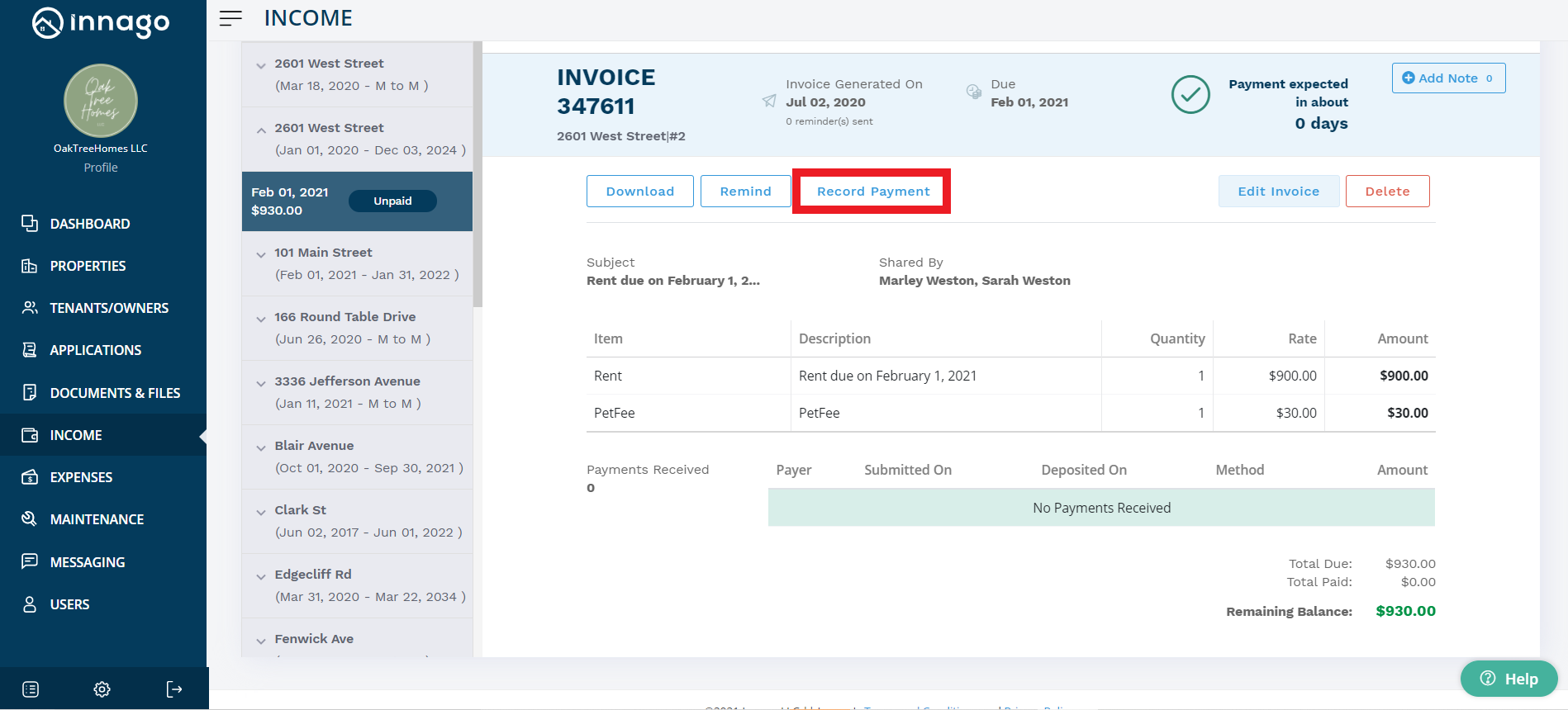
4. Hit the “Record Payment” button.
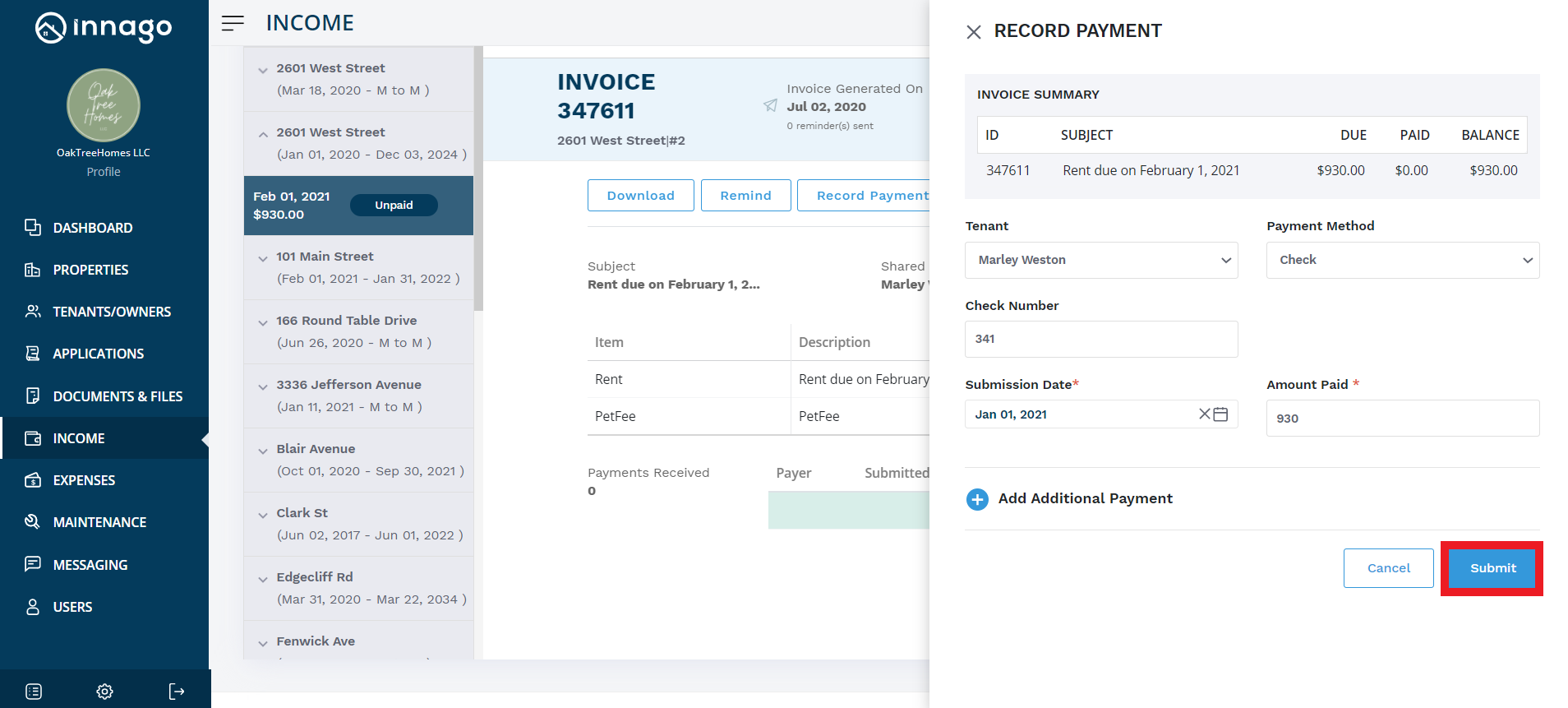
5. You can record this payment via one of three payment methods – check, cash, or money order. If the tenant paid you using Cash App or Zelle etc., we recommend selecting “Check” and inputting text within the “Check Number” field to describe it.
6. Choose a submission date and type in the amount paid. If the tenant paid more than what is due on the current invoice, you’ll be prompted to apply the overage to the following invoices based on due date.
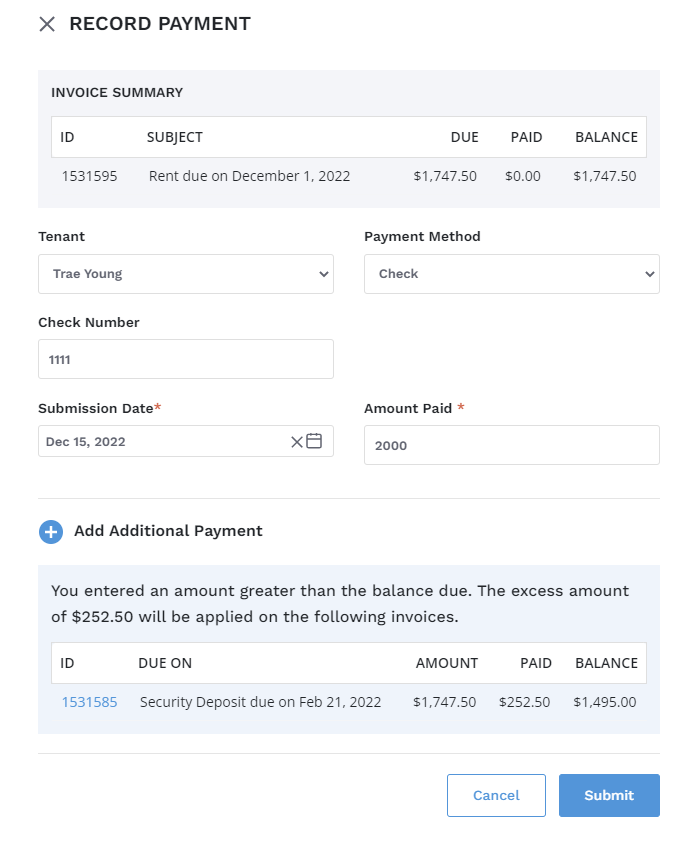
7. You can also add an additional payment for this tenant at the same time while this pane is open. This additional payment can apply to the same invoice if there is still a balance owed, or multiple invoices as mentioned above.
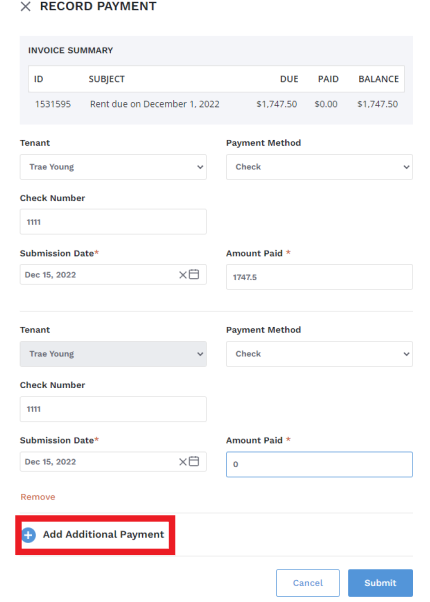
8. Click “Submit” on your web browser or “Continue” on the mobile app to record the payment.